Ondi Platform
Operations quickstart
Configure a tenant, enable the modules you need, invite your team, and run the first delivery, warehouse, storefront, restaurant, or express shipping workflow.
1const tenant = await ondi.tenants.setup({
2  modules: ["delivery", "warehouse", "storefront"],
3  branding: "your-business",
4});
5
6await tenant.inviteTeam();
7console.log(tenant.firstWorkflow.status);
Build paths
Set up delivery, warehousing, storefront, restaurant, express shipping, settings, users, and customer workflows.
Start with guides ↗API referenceReview endpoints, authentication, request fields, generated cURL examples, and response examples from the Ondi Postman collection.
Start with API docs ↗Modules
Start with one module or combine the workflows that match your operation.
Why Ondi
What You Can Run

The tenant admin portal is the main configuration and management workspace. The left navigation changes based on enabled modules and user permissions. If a module is present but not enabled for the tenant, the portal can show it as unavailable.
Set zones, pricing, delivery services, fulfillment policies, vehicles, drivers, teams, assignments, waybills, trips, returns, exceptions, COD, customer portal rules, and reports.
WarehousingManage warehouses, staff, receiving orders, picking orders, bin locations, suppliers, inventory items, stock, transfers, package handoff, audits, and warehouse reports.
StorefrontCreate a customer shop, manage categories, brands, products, variants, orders, reviews, advertisements, storefront customers, delivery configuration, and publishing.
RestaurantConfigure restaurant locations, staff, categories, products, modifiers, menus, tables, customers, delivery configuration, customer ordering, and POS workflows.
Express ShippingOffer branded shipping pages, pricing, package creation, package tracking, customer registration, claims, payment status, and express shipping settings.
IntegrationsConnect carriers and external tools through Ondi settings, API keys, webhooks, and the public API documentation.
How Work Moves
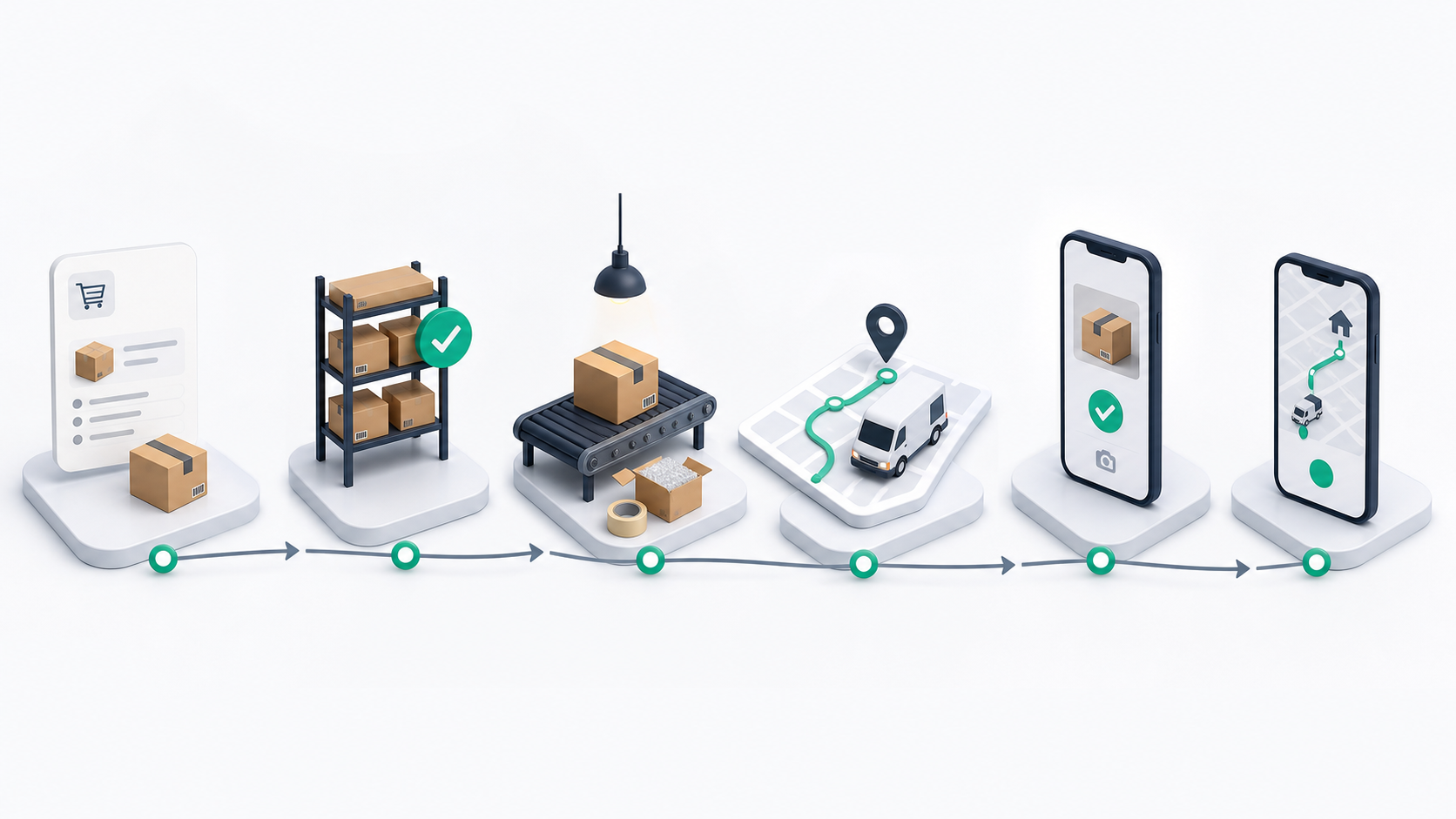
A typical Ondi workflow starts with an order or shipment request. Ondi then connects the right operational records behind it: customer, address, service, price, stock, warehouse, driver, route, payment, proof, and status.
- Configure the tenant: users, roles, modules, branding, payment methods, API keys, and system settings.
- Set up the operational module: delivery zones, warehouses, storefront products, restaurant menus, or shipping settings.
- Receive work: a customer order, delivery request, shipment, restaurant order, or internal warehouse task.
- Execute the work: pick stock, prepare packages, assign drivers, dispatch routes, collect proof, and update status.
- Keep customers informed: tracking pages, order history, notifications, support tickets, receipts, and customer portal updates.
- Review performance: dashboards, reports, driver performance, warehouse activity, COD, financial summaries, logs, and exports.
Workspaces And Apps

Ondi is not only one admin screen. It includes connected workspaces for the people who operate the business and the customers who use it.
Control And Visibility

Ondi keeps operational control close to the daily workflow. Admins can review module dashboards, reports, logs, payments, support tickets, chat, and API access without leaving the tenant workspace.
- Dashboards summarize delivery volume, warehouse activity, storefront sales, restaurant performance, and express shipping activity when data is available.
- Reports help teams review operational performance and export the records they need.
- Roles and permissions control which users can manage tenant users, delivery, warehousing, storefront, express shipping, settings, and other areas.
- Module status controls whether a tenant can use Delivery, Warehousing, Storefront, Restaurant, and Express Shipping.
- Settings centralize payment methods, system settings, branding, API key management, customer-facing configuration, and support behavior.
- Integrations connect Ondi with carriers, maps, SMS, email, payment providers, webhooks, and external systems.
Setup Path
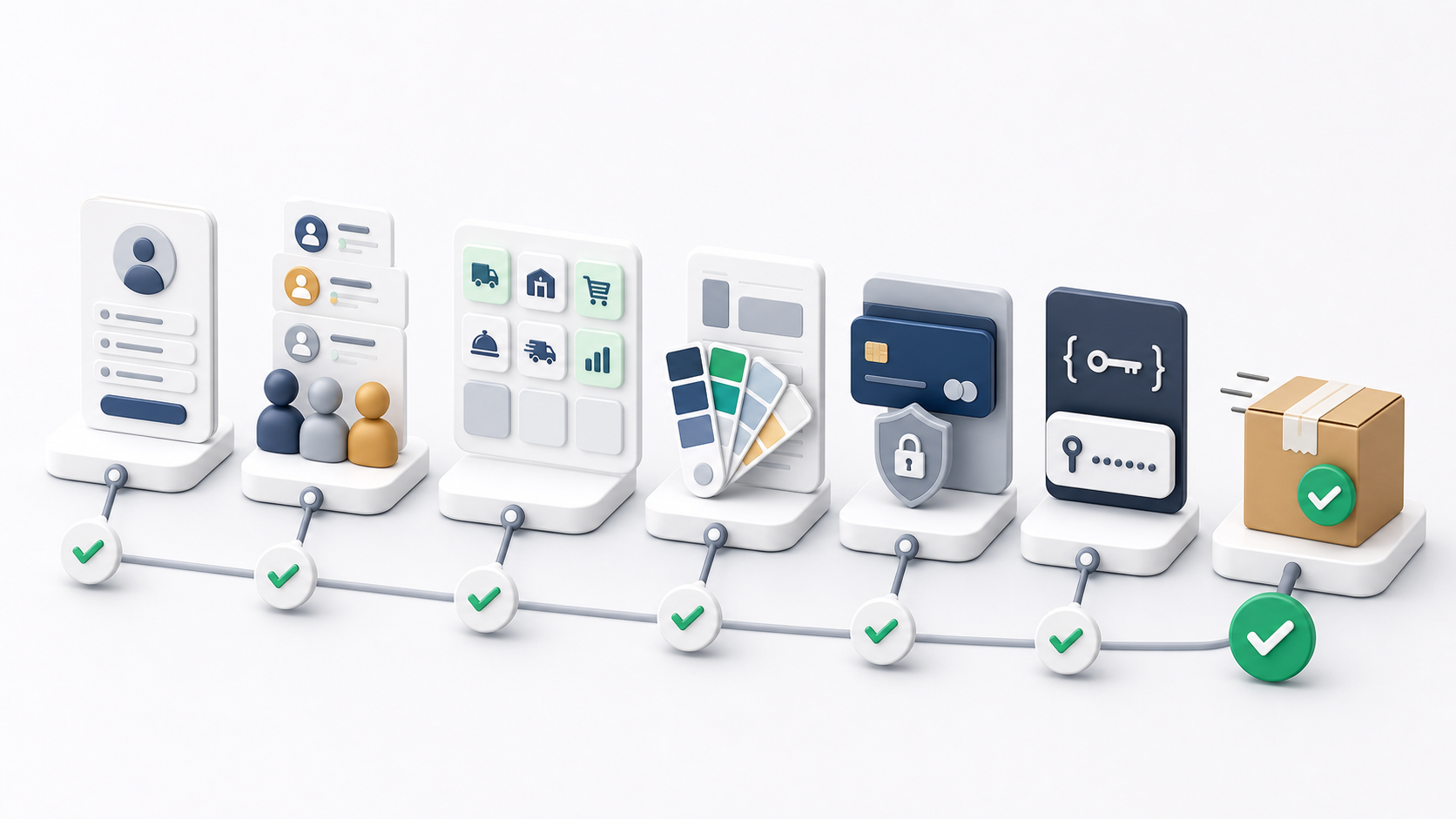
Use this order when you are setting up Ondi for the first time.
- Sign in and learn the portal interface.
- Manage users and customers, then assign the right roles and permissions.
- Enable and configure the modules your tenant will use.
- Configure System Settings, Brand Settings, Payment Methods, and API Key Management.
- Set up the first operational module: Delivery, Warehousing, Storefront, Restaurant, or Express Shipping.
- Create a small real test flow before going live: one order, one customer, one service, one fulfillment path, and one completed status update.
Choose Your First Guide
If you are unsure where to start, begin with Onboarding, then open the module that matches your first live workflow.