Users List
Open Management -> Users to see the tenant's admin and staff users. This page is for people who can work inside tenant operations, such as admins, drivers, dispatchers, warehouse staff, and other role-based users.
What you see on the page
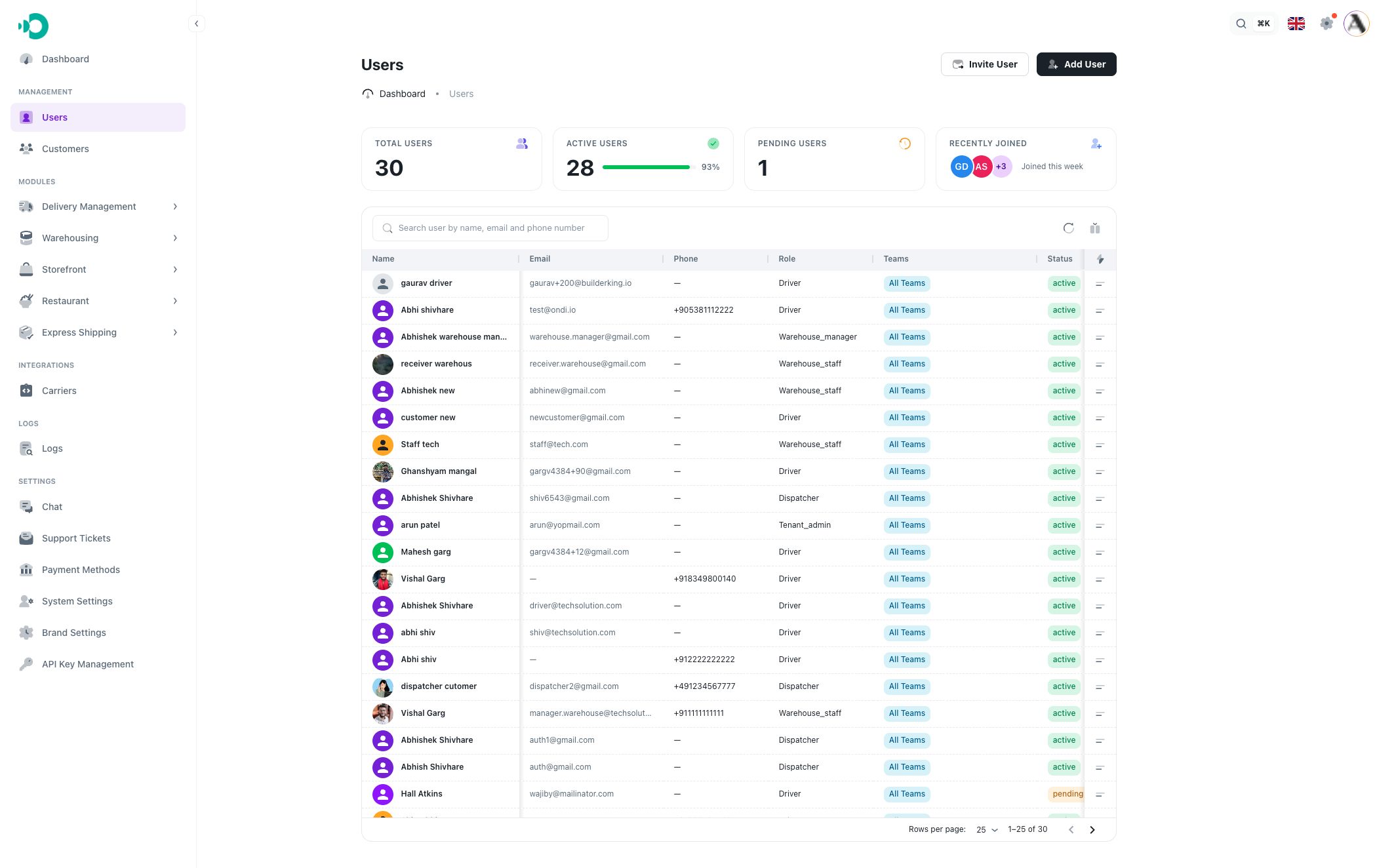
At the top, the page shows summary cards:
- Total Users: all users returned by the current tenant user list.
- Active Users: users with an active status.
- Pending Users: users waiting or not fully active yet.
- Recently Joined: the newest users added this week.
The table below the summary cards shows each user record.
Table columns
The default users table includes:
- Name: the user's profile name and avatar.
- Email: the sign-in or contact email.
- Phone: the phone number if one is saved.
- Role: the assigned tenant role, such as driver, dispatcher, tenant admin, or warehouse staff.
- Teams: all teams or the selected teams assigned to the user.
- Status: active, pending, or inactive.
- Created At: when the user record was created.
- Last Login: when the user last signed in.
Search and filters
Use the search field to find a user by name, email, or phone number.
Column filters are available on filterable columns such as name, email, phone, role, status, created date, and last login. Date filters let you filter by date range, and role filters let you search roles.
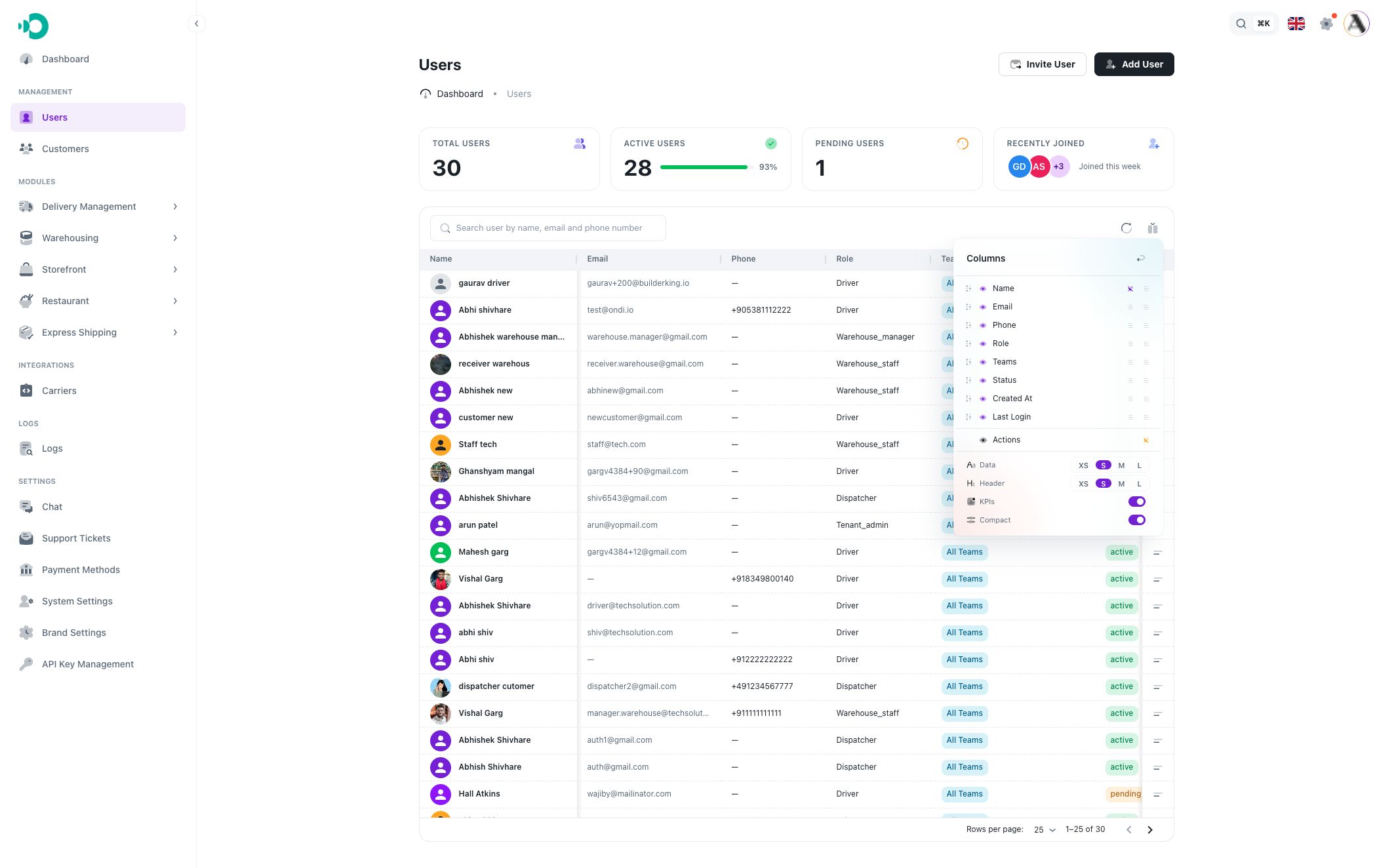
Use Columns when you want to show, hide, pin, or unpin table columns. You can also change table density from this menu.
User actions
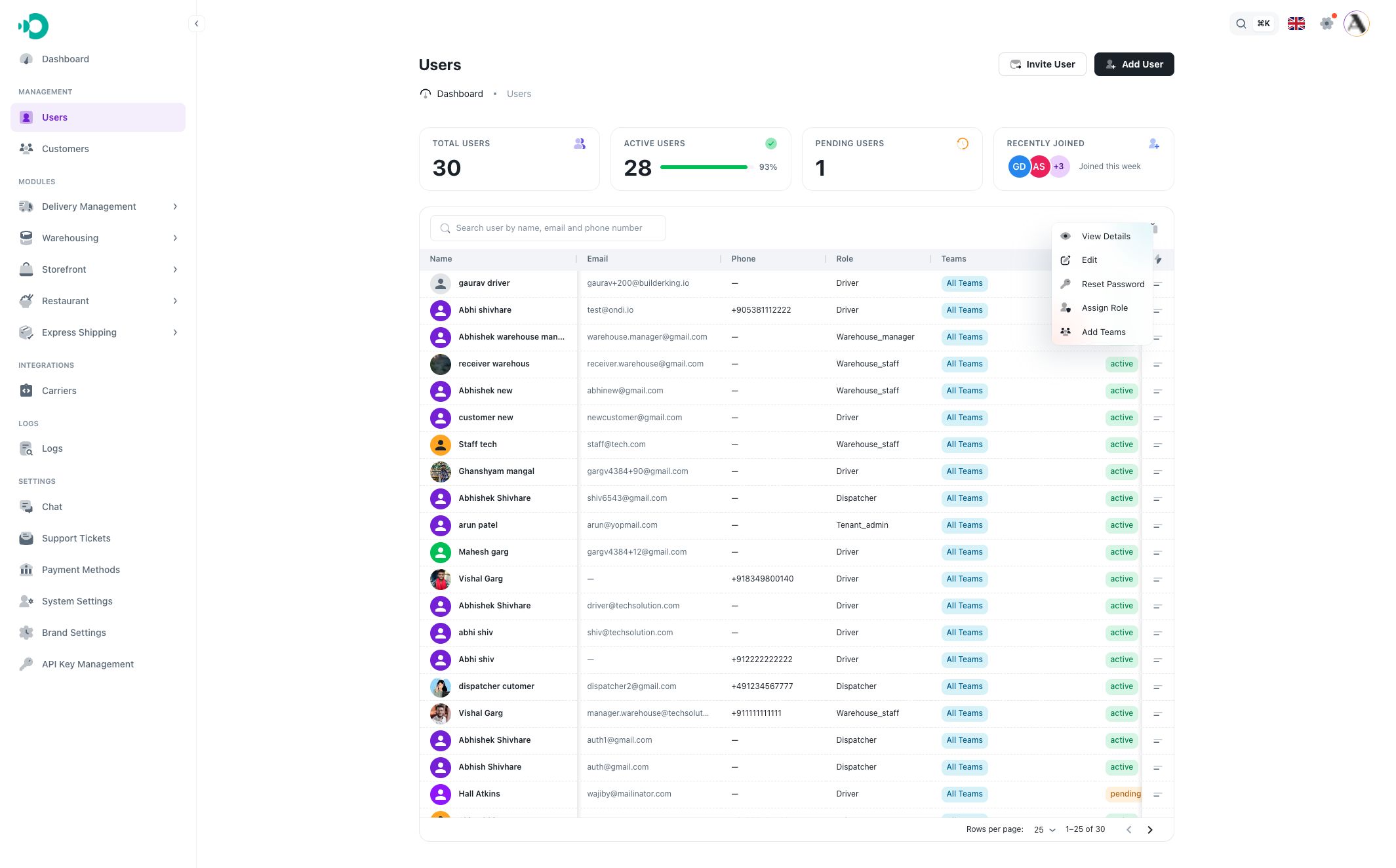
Each row has a context menu. Use it for user-specific work:
- View Details opens the full user detail page.
- Edit updates the user's name, status, or user type.
- Reset Password lets an admin set a new password for the user.
- Assign Role changes the user's role.
- Add Teams assigns the user to all teams or selected teams.
Clicking a row also opens the user's detail page.
When to use this page
Use the Users list when you need to:
- Find a staff member quickly.
- Check who has which role.
- Review whether a user is active or pending.
- Move a user into teams.
- Open the detail page to review wallet, addresses, permissions, or driver-specific information.