Export History and Downloads
After the preview looks correct, click Request export. Ondi queues an export job and adds it to Export history for the selected catalog.
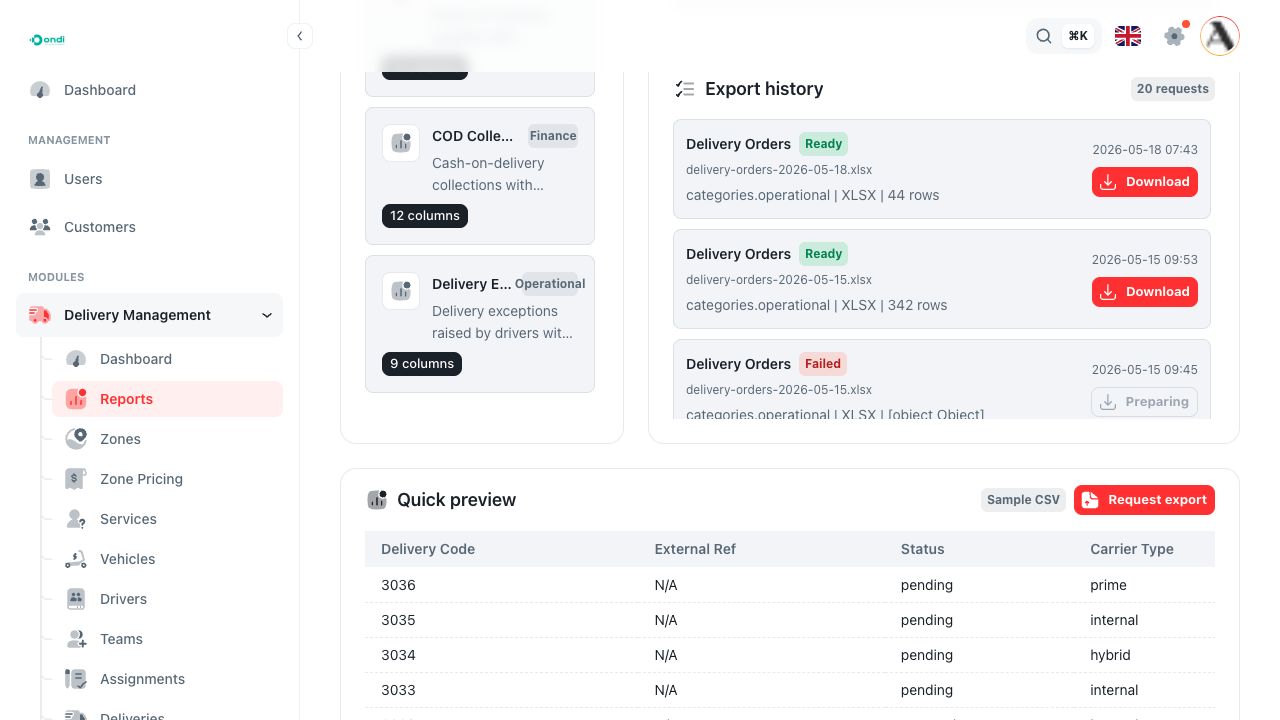
Export statuses
Export jobs can move through these statuses:
- Pending: the job is queued.
- Processing: Ondi is building the file.
- Ready: the file can be downloaded.
- Failed: the export could not be completed.
- Cancelled: the job was cancelled before completion.
Pending and processing jobs can be cancelled from export history. Ready jobs show a Download action.
What history shows
Each history item shows the report title, status, file name, requested time, and a short summary of the filters used for that export. History is filtered to the selected catalog, so switch catalogs to see export jobs for a different report type.
The history list loads more jobs as you scroll.
Downloading a file
Click Download when the job is ready. Ondi prepares a download URL and opens the file. If a job is still pending or processing, the download action stays disabled.
Good export habits
- Preview before every export.
- Use focused date ranges.
- Select only the columns the recipient needs.
- Use reference values for human-readable spreadsheets.
- Use IDs when the file is going to another system.
- Cancel exports that were requested with the wrong filters.