Publishing Your Shop

Publishing makes the Store Front available to customers. It should be the last step after the market, catalog, warehouse links, delivery configuration, payment settings, theme, ads, and test order flow are ready.
Do not publish only because the shop page looks good. Publish when the full customer journey works: browse, add to cart, checkout, order creation, order review, fulfillment, delivery, and customer portal tracking.
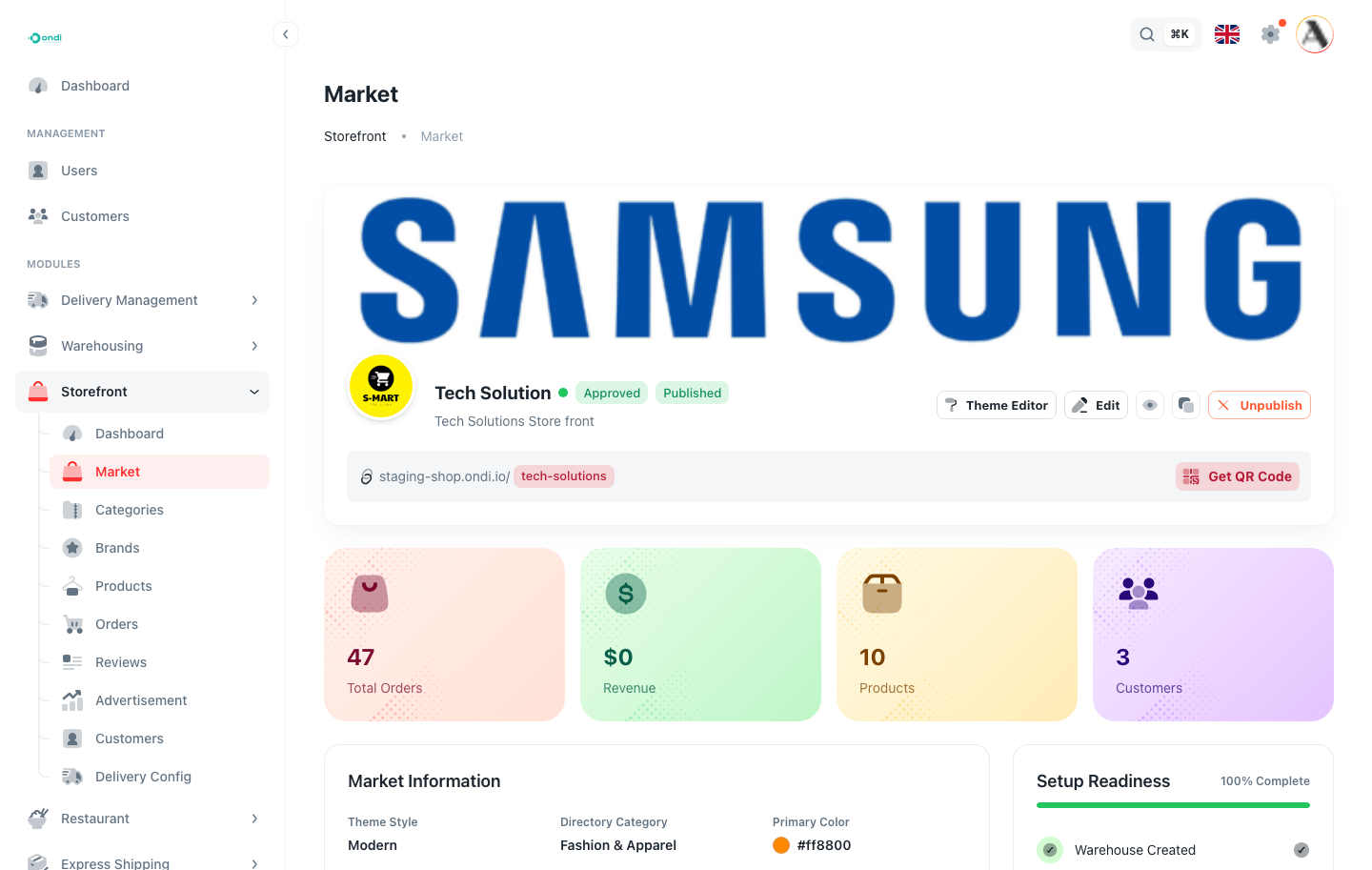
Publishing states
- Draft: The shop is still being configured.
- Pending approval: The shop is waiting for approval.
- Approved: The shop can be published.
- Published: Customers can access and place orders.
- Unpublished: The shop is hidden from customers while your team makes changes.
Before publishing
Use this order before going live:
- Create the market and confirm the store name, logo, and slug.
- Add categories and brands.
- Add products with clean images, prices, descriptions, and active status.
- Link products or variants to warehouse inventory where needed.
- Confirm stock levels and warehouse locations.
- Configure payment methods.
- Configure delivery services, delivery mode, and delivery pricing.
- Review the theme on desktop and mobile.
- Review ads and remove anything that should not be live.
- Place a test order from the public storefront.
- Open the order in admin and confirm approval, item review, delivery behavior, and status updates.
- Confirm the customer can see the order in the customer portal.
Custom domain and QR code
Use the Market page to copy the store link, open the QR code, or connect a custom domain. A custom domain is useful when you want the storefront to feel fully owned by your brand.
Readiness checklist
Use the setup readiness area on the Market page as the final admin check. The store should have products, active categories, valid stock, delivery setup, payment setup, and a reviewed theme before the public link is shared.
After publishing
Publishing is not the end of setup. After publishing, place one more real test order through the public link. Confirm the order appears in Storefront -> Orders, confirm stock behavior, confirm delivery behavior, and confirm that the customer portal reflects the correct order status.
If the tenant uses a custom domain, test the custom domain separately from the default store link. DNS and browser caching can make a domain look ready to one person and not ready to another.
When to unpublish
Unpublish the shop when the business needs to stop customer ordering temporarily. Common reasons include stock correction, delivery outage, payment configuration problems, major catalog changes, or seasonal closure.
Unpublishing should be treated as an operational action. Before unpublishing, review active orders and make sure existing customers still receive updates.