G2G Concepts and Statuses
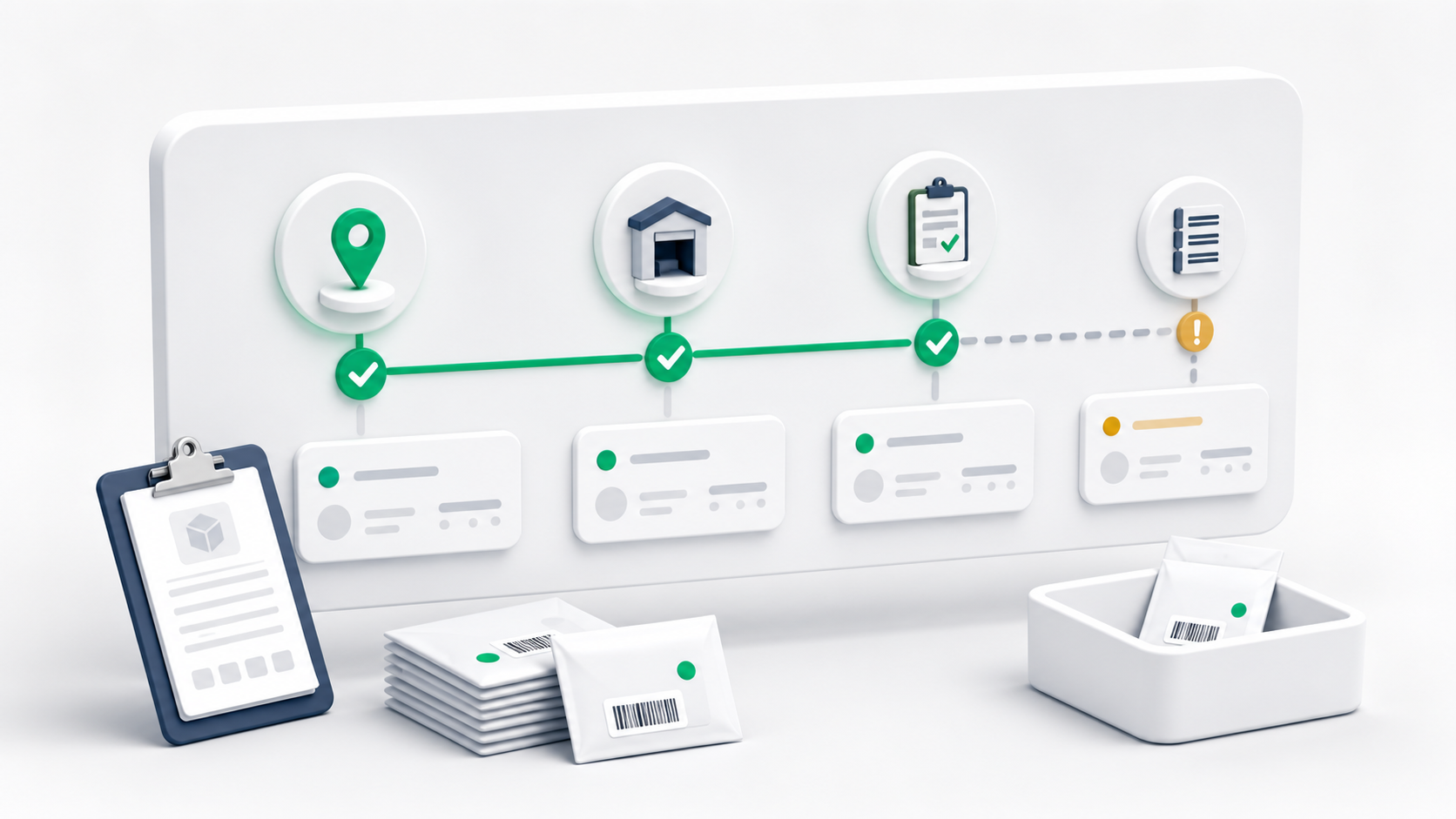
Use this page as a shared vocabulary for G2G operations. A manifest, an item, and a barcode are connected, but they do not always have the same status.
Main Words
| Word | Meaning |
|---|---|
| G2G | Institution-to-processing pickup workflow where item barcodes are collected from a branch first, then converted into delivery orders after processing. |
| Transfer Manifest | The custody record for a group of barcodes picked up from one institution branch and handed to one processing point. |
| Institution | The customer or institution that owns the pickup branch. |
| Source branch | The institution branch where the driver collects the barcoded items. |
| Processing point | The internal receiving location where processing staff receive and process the manifest. |
| Barcode batch | A generated set of barcodes for one institution branch. |
| Manifest item | One barcode inside a transfer manifest. |
| Destination address | A normal address chosen during processing. |
| Destination branch | An institution branch chosen as the destination during processing. |
| Created delivery order | The normal delivery order created from a received manifest item after destination assignment. |
Manifest Statuses
| Status | What it means | Normal next step |
|---|---|---|
| Draft | The driver created the manifest and can still scan or remove pickup items. | Driver scans items and submits pickup. |
| Picked up | The pickup was submitted and the manifest is locked for pickup custody. | Driver travels to the processing point. |
| In transit | The manifest is moving toward processing, when this status is used by the operation. | Driver arrives at processing. |
| Awaiting receipt | The driver has arrived or the manifest is ready for receiving. | Dispatcher or processing staff starts receiving. |
| Receiving | Receiving is open. Staff can add received items or exception items. | Staff completes receiving. |
| Received | Receiving is complete and no exception count remains open. | Staff assigns destinations and creates orders. |
| Received with exceptions | Receiving is complete, but one or more items are exceptions. | Staff resolves exceptions and processes received items. |
| Processing | At least one received item is being processed into orders. | Continue destination assignment and exception resolution. |
| Completed | All eligible items are finished as orders, resolved, or voided. | Review history and created orders. |
| Cancelled | The manifest was cancelled. | No normal processing should continue. |
Item Statuses
| Status | What it means |
|---|---|
| Scanned | The item was added while the manifest was still in draft. |
| Picked up | Pickup was submitted and the item is part of the custody handoff. |
| In transit | The item is moving with the manifest, when this status is used. |
| Received | Processing staff confirmed the item arrived. It can be assigned a destination. |
| Processing | The item is in the destination assignment or order creation stage. |
| Order created | The item has already become a normal delivery order. |
| Exception | The item has a problem that must be resolved or voided. |
| Void | The item was closed and should not become a delivery order. |
Barcode Statuses
| Status | What it means |
|---|---|
| Available | The barcode can be scanned into a new transfer manifest. |
| In manifest | The barcode is already inside a transfer manifest. |
| Received | The barcode was received at processing. |
| Order created | The barcode has become a delivery order. |
| Exception | The barcode is tied to an exception item. |
| Void | The barcode cannot be used. |
Exception Reasons
Processing staff may record an exception when an item is missing, damaged, mismatched, unreadable, held for review, or otherwise not ready for destination assignment.
The portal may show user-friendly reason labels. The important operational rule is the same: an exception item stays out of normal order creation until staff resolves it.
Exception Resolutions
| Resolution | What it does |
|---|---|
| Reprocess | Returns the item to a received state so staff can assign a destination and create the order. |
| Void | Closes the item so it will not become a delivery order. |
tip
Check the manifest status first when an action is missing. Most buttons are hidden until the manifest reaches the correct stage.