Edit order items
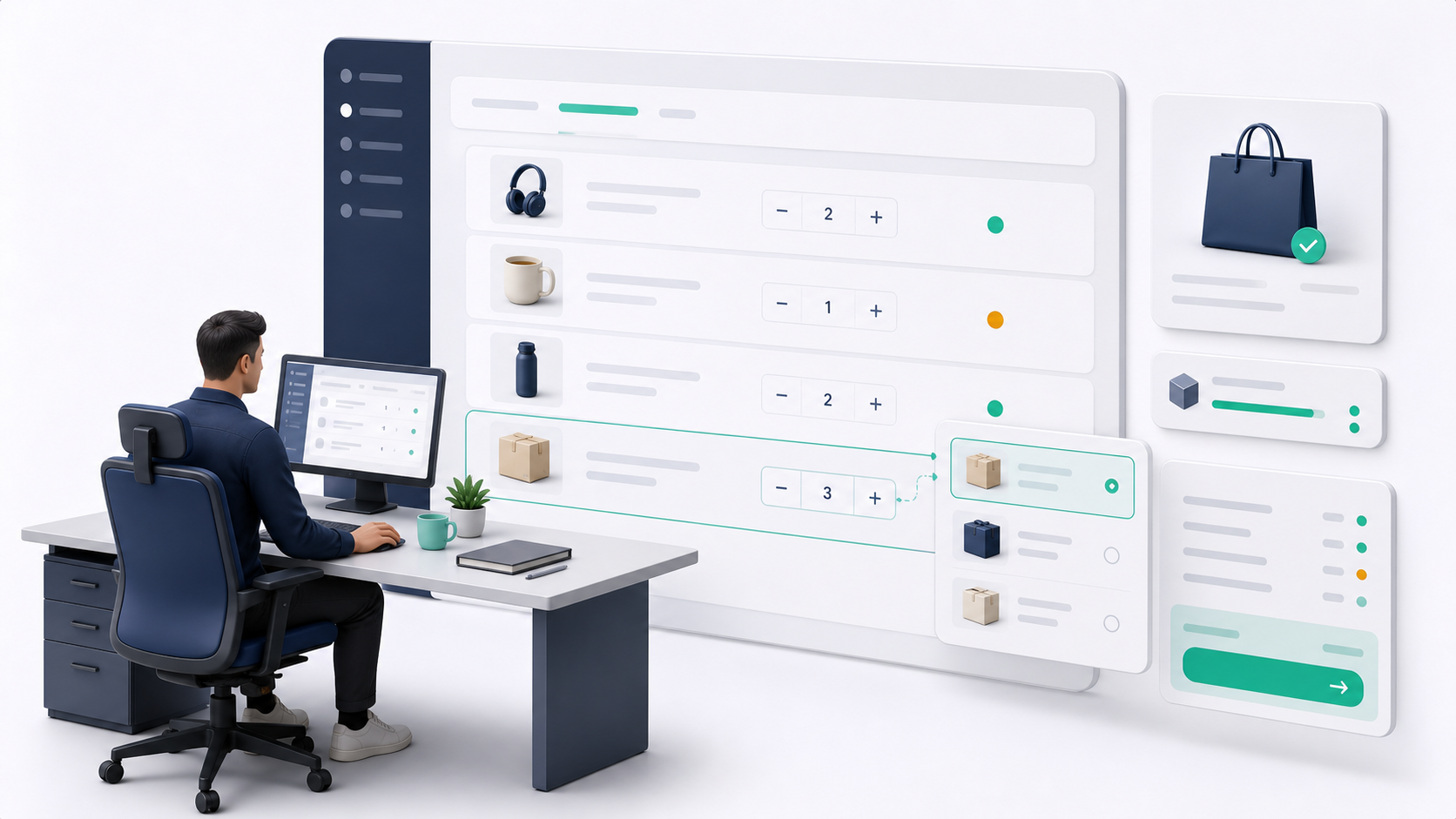
Order item editing is used when an order needs correction before fulfillment. The admin can adjust eligible order groups by adding products, changing quantities, swapping variants, removing items, or removing a group when the workflow allows it.
This is an operational tool. Use it carefully because changes affect customer expectations, totals, warehouse work, and delivery.
When item editing is available
The Store Front admin supports item edits only for eligible statuses. In the current tenant admin workflow, items are editable when the order or group is in an early operational state such as pending, awaiting approval, or approved.
Once the order is shipped, in transit, delivered, cancelled, returned, or refunded, item edits should not be used as a normal workflow. Those later statuses need cancellation, return, refund, or support processes instead.
Open the editing workflow
- Go to Storefront -> Orders.
- Open the order detail page.
- Review the order status and group status.
- Find the order group that needs changes.
- Use the item controls to add an item, adjust quantity, swap a variant, remove an item, or remove a group.
- Review the recalculated totals.
- Save the order changes.
- Refresh or re-open the order detail to confirm the saved state.
The item controls sit inside the order group because each product still belongs to a fulfillment path. Keep edits inside the correct group whenever possible so warehouse and delivery work stay clean.
Add an item
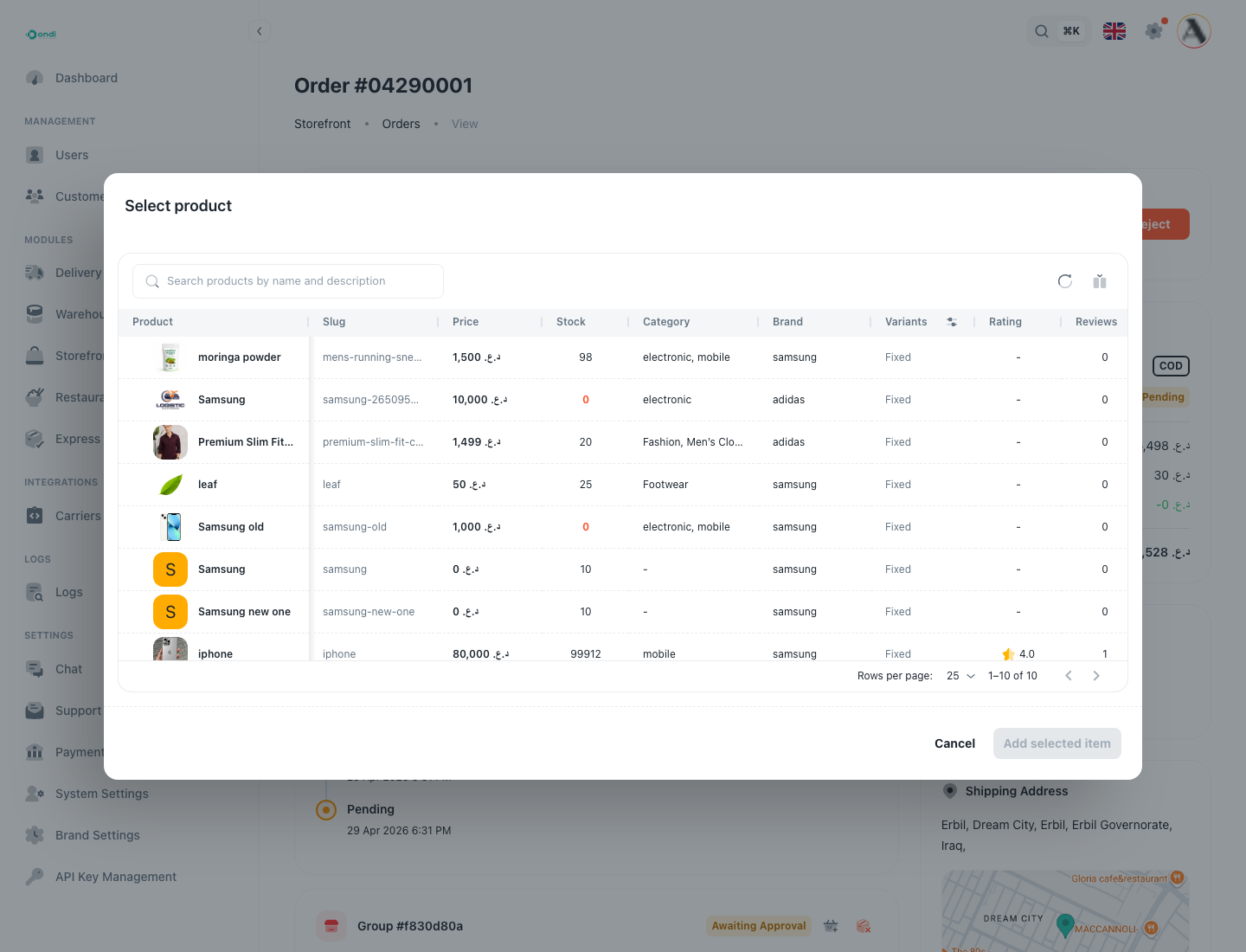
Use add item when the customer requested another product before fulfillment or when an admin needs to correct an incomplete order. The product picker should be used to choose an existing Store Front product or variant.
When the selected product belongs to a warehouse already represented in the order, it can be added to the matching group. When it belongs to a different warehouse, the system may create or stage another group so fulfillment stays organized.
Change quantity
Use quantity changes when the customer requested more or fewer units or when the original quantity was wrong. The quantity should remain a positive whole number.
Before increasing quantity, confirm stock availability. Increasing quantity without stock can create fulfillment issues after approval.
Swap a variant
Use variant swap when the customer wants a different size, color, model, or configuration of the same product. The replacement variant should be valid for the same warehouse group so fulfillment remains possible.
Do not use variant swap to replace one product with a completely unrelated product. Use add and remove item behavior instead.
Remove item or group
Remove an item only when at least one item remains in the group. A group cannot be left empty. If removing a full group, make sure the order still has at least one active group unless the order is being cancelled.
The admin should understand whether removal changes payment, refund, delivery, or customer communication requirements.
Where customers see the result
Customers may see updated item lists, totals, and order status in the customer portal. If the change affects what the customer will receive or pay, communicate clearly through the tenant's support process.