Map and Table Views

The dispatcher console has two main working views: Map View and Table View. Both show dispatcher order queues, but they are built for different types of decisions.
Use Map View when location, driver proximity, zones, and live movement matter. Use Table View when you need to compare many records, sort columns, select rows, or run actions quickly.
Map View
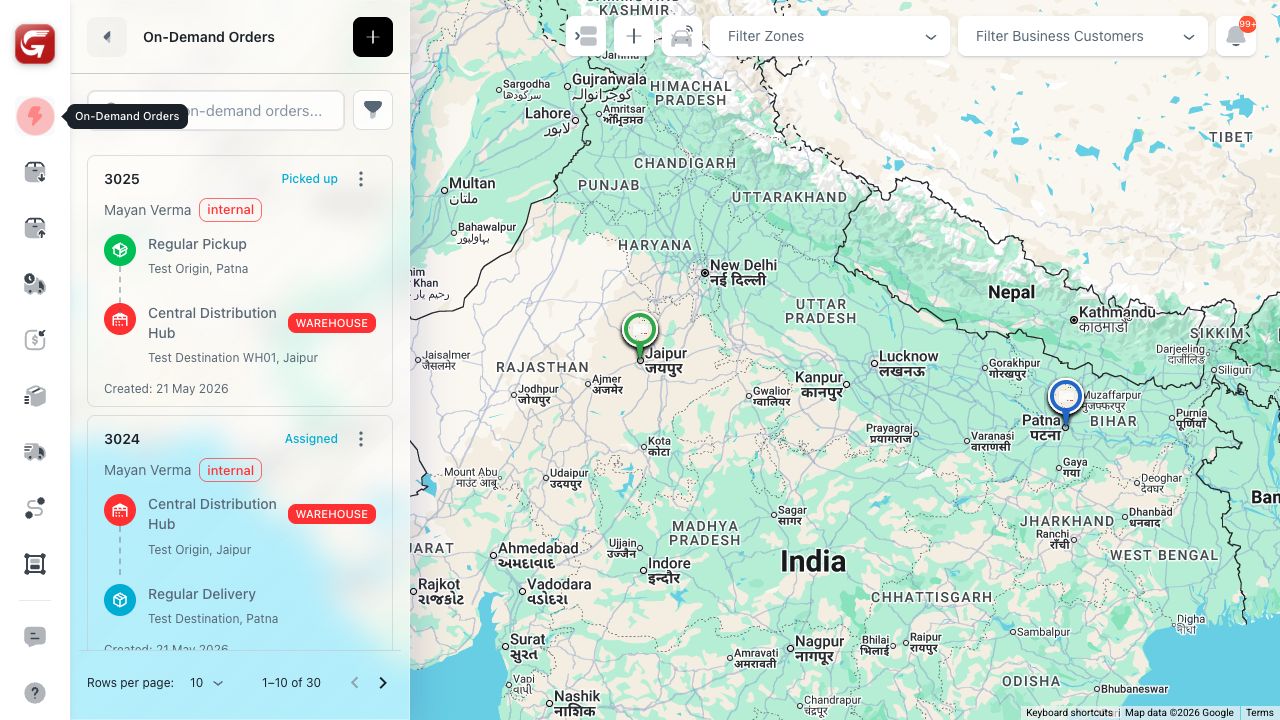
Map View combines the order panel, map markers, driver visibility, and top controls in one screen.
The top controls include:
| Control | What it does |
|---|---|
| Switch to Table View | Opens the same order queue in table format. |
| Add Order | Starts a new order for the selected order type. |
| Drivers | Opens the driver monitoring panel. |
| Filter Zones | Limits map visibility to a selected zone. |
| Filter Business Customers | Filters visible delivery work for a selected business customer. |
| Notifications | Opens operational notifications and unread alerts. |
The left panel lists orders for the selected order type. Selecting an order focuses the panel and can show its pickup and delivery points on the map.

Map markers represent pickup points, delivery points, driver locations, and selected order points. Marker colors and icons help distinguish the current order, pickup/dropoff type, warehouse points, and grouped markers.
Use Map View when assigning a driver manually. It gives better context for pickup zone, dropoff zone, driver location, and nearby operational load.
Map Filters
The map order filter drawer helps reduce the active queue before dispatching.

Filter options include:
| Filter | Use it when |
|---|---|
| Delivery Status | You need only pending, assigned, picked up, in transit, delivered, cancelled, or returned orders. |
| Assignment Status | You need to separate unassigned work from driver-owned work. |
| Carrier Type | You need only internal, prime, external, or hybrid delivery work. |
| Date Range | You need orders created or scheduled in a specific time period. |
Use Clear All to reset the drawer. Use Apply Date Range after choosing dates.
Table View

Table View is best for high-volume order management. It shows many delivery records at once and supports search, sorting, pagination, column control, row menus, and row selection.
The table header includes:
| Button | What it does |
|---|---|
| Bulk Assign | Assigns selected eligible orders to one driver. |
| Route Assignment | Assigns selected eligible orders to a delivery route. |
| Bulk Actions | Opens batch actions for selected rows. |
| Create Order | Opens the order form for the current order type. |
| Switch to Map View | Returns to Map View. |
| Notifications | Opens the notification panel. |
Bulk buttons remain disabled until selected rows meet the action conditions. For example, bulk driver assignment requires eligible pending internal orders with no active driver assignment.
Column Controls

The column control panel lets dispatchers show, hide, reorder, and resize table columns. It also includes density controls for users who prefer compact rows or larger data text.
Common columns include:
| Column | Meaning |
|---|---|
| Code | Delivery code used for quick lookup. |
| Customer | Customer attached to the order. |
| Driver | Assigned driver, or not assigned. |
| Barcode | Barcode/reference used on labels. |
| Status | Delivery lifecycle state. |
| Assignment | Driver assignment state. |
| Carrier | Internal, prime, external, or hybrid carrier type. |
| Pickup Zone / Dropoff Zone | Zones for origin and destination. |
| Pickup Warehouse | Warehouse used as the origin or staging point. |
| Vehicle | Driver vehicle assigned to the work. |
| Payment / Payer / Pay Method / COD | Payment state and collection responsibility. |
Hidden columns may still be available in the column control panel. If a dispatcher cannot see an expected field, check the column panel before assuming the data is missing.
Choosing the Right View
| Situation | Recommended view |
|---|---|
| You need to see where orders and drivers are | Map View |
| You need to compare many orders quickly | Table View |
| You need to run bulk actions | Table View |
| You need to filter by zone or business customer | Map View |
| You need to adjust visible columns | Table View |
| You need to inspect a single order's route | Either view, then open order details |