Driver Accounting and Wallet

Tenant admins use the driver detail page to review a driver's financial position across COD, earnings, costs, wallet balance, support adjustments, and settlement activity.
Open driver accounting
Go to Admin -> Drivers, open a driver, then choose the Accounting tab.
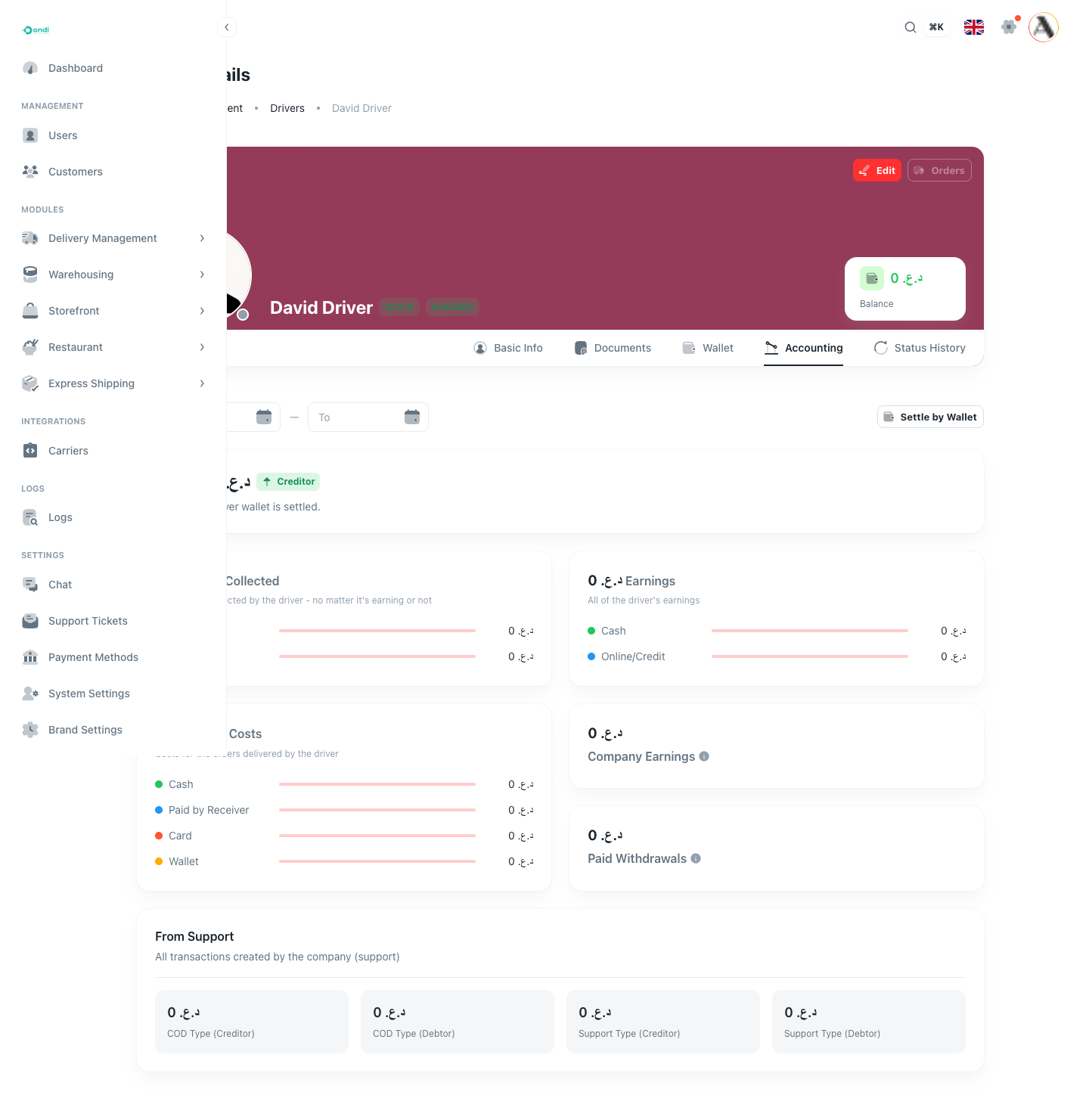
The accounting tab summarizes the driver's current position. Use it before settling COD, investigating a mismatch, or reviewing weekly performance.
Accounting sections
Balance summary : Shows whether the driver wallet is settled, creditor, or debtor. A positive balance means the wallet has funds. A negative balance means the driver owes the business according to the wallet ledger.
Cash Collected : Shows cash collected by the driver, including COD and order fee cash if configured.
Earnings : Shows driver earnings recorded in wallet transactions, such as delivery earnings or credits.
Order Costs : Shows costs connected to completed orders, including cash remittance and wallet settlement.
Company Earnings : Shows amounts retained by the company where applicable.
Paid Withdrawals : Shows wallet payout or withdrawal amounts that have been paid.
From Support : Shows manual support-created creditor or debtor adjustments.
Use Settle by Wallet from accounting
The Settle by Wallet button on the accounting tab clears that driver's pending collected COD using the driver wallet.
This action:
- Finds all
collectedCOD records for the driver. - Deducts the total COD amount from the driver wallet.
- Marks those COD records as
settled_by_wallet. - Refreshes accounting after success.
It does not deduct the whole wallet balance. It deducts only the pending COD total.
Open driver wallet
Open the Wallet tab from the same driver detail page.
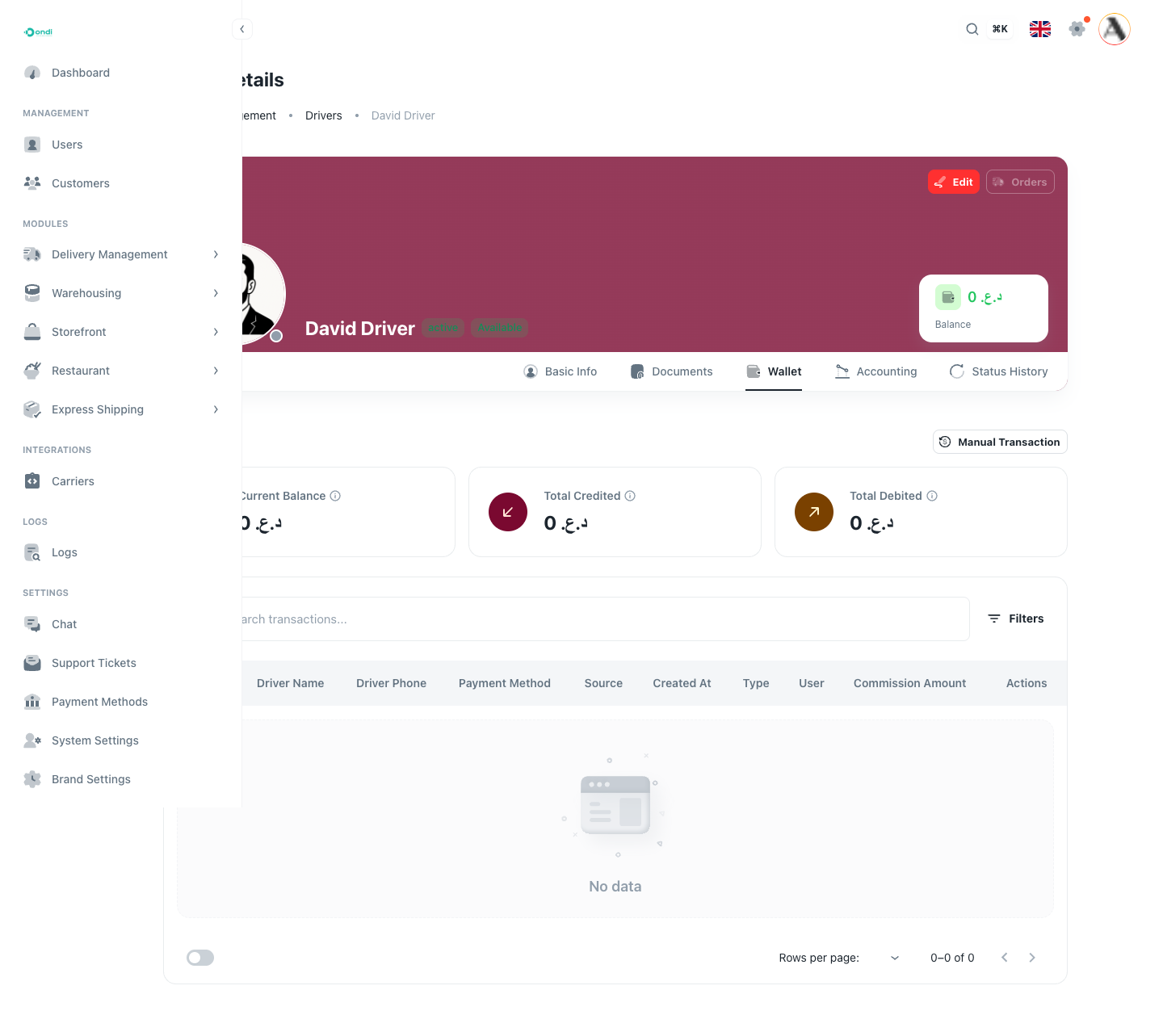
The wallet tab shows the wallet ledger and transaction history. Use filters to review debits, credits, source, payment method, and date range.
Manual driver wallet transaction
Use Manual Transaction only for finance or support corrections.
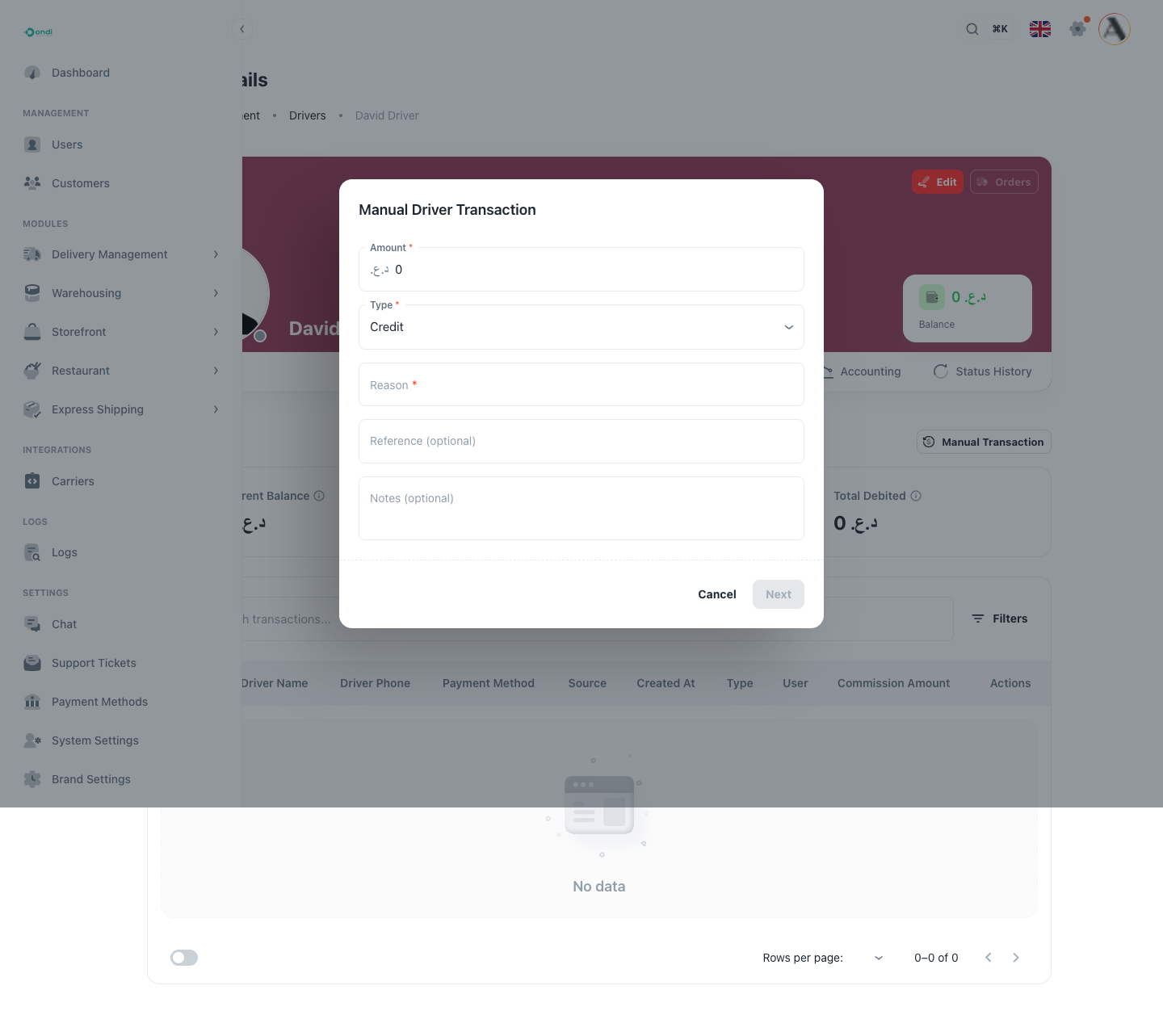
Manual transaction supports:
- Credit: Adds money to the driver wallet.
- Debit: Removes money from the driver wallet.
- Reason: Required explanation for the correction.
- Reference: Optional external receipt, ticket, or approval reference.
- Notes: Optional internal context.
Common use cases:
- Correcting a driver earning.
- Recording an approved support adjustment.
- Fixing a wallet mismatch after finance review.
- Adding a manual debit when a driver owes the company outside normal COD settlement.
Do not use manual transaction as the normal COD settlement path. Use cash remittance or wallet settlement so COD records receive the correct status.
Weekly admin review checklist
- Open the driver's accounting tab.
- Set the date range for the week if needed.
- Compare collected COD, remitted COD, wallet-settled COD, earnings, and current wallet balance.
- If cash was handed over, confirm it was remitted from Dispatcher.
- If wallet settlement is intended, confirm the wallet balance is enough before clicking Settle by Wallet.
- Use manual transaction only when there is an approved correction.