Scan Items and Submit Pickup
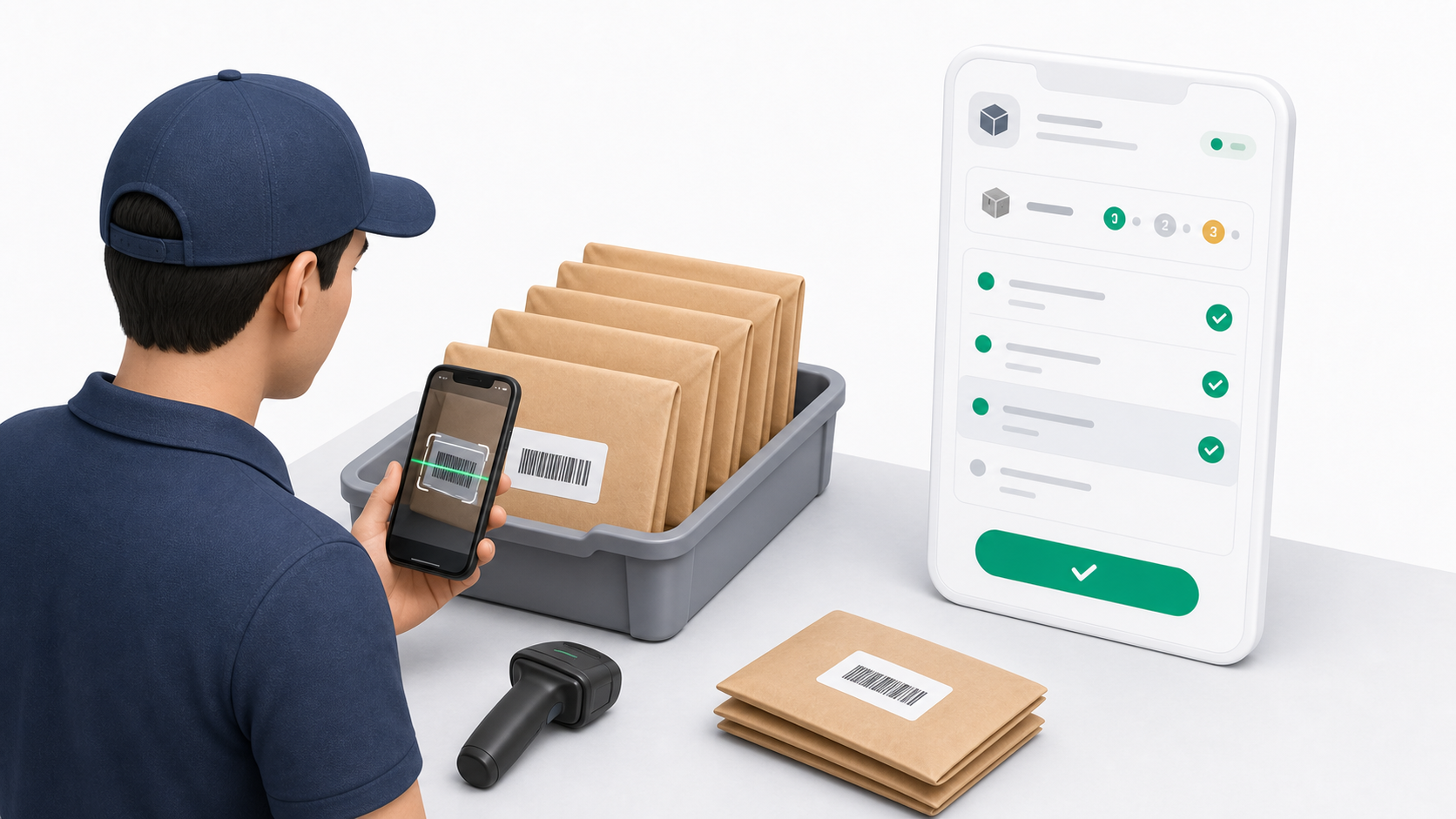
The scan screen is where the driver confirms the exact barcodes being collected from the institution branch.
Step 1: Add Barcodes
Drivers can add barcodes in two ways:
- Scan the item label with the device camera.
- If the camera cannot read the label, type the barcode manually and tap Add.
The app checks each barcode before accepting it. A barcode can be rejected if it is unknown, belongs to the wrong branch, is already used, is voided, or is not available for pickup.
Step 2: Review The Accepted List
The app keeps the accepted barcode list visible.
Drivers should compare the screen against the physical items before submitting pickup. This helps catch missing scans, duplicate attempts, or a barcode that was placed with the wrong pickup set.
The count on screen should match the number of physical items the driver is taking from the branch.
Step 3: Remove A Mistake Before Submitting
While the manifest is still in Draft, the driver can remove a scanned item from the list.
Use remove only before pickup submission. After pickup is submitted, the manifest is locked and the driver should contact dispatch or processing staff if something is wrong.
Step 4: Review Pickup
When at least one item has been accepted, the driver can open the pickup review screen.
Review:
- Institution.
- Source branch.
- Processing point.
- Manifest number.
- Scanned item count.
- Barcode list.
If the count or barcode list is wrong, go back before submitting. Do not submit and then ask processing staff to fix a pickup mistake unless there is no other option.
Step 5: Submit Pickup
Submitting pickup confirms that the driver collected the listed items from the institution branch.
After submission:
- The manifest moves out of draft.
- The driver can no longer remove pickup items.
- Items become part of the custody handoff.
- The next driver action is to arrive at processing.
Do not submit pickup until the accepted barcode list matches the physical items being collected.
Common Scan Problems
| Problem | What to do |
|---|---|
| Barcode is unknown | Confirm the label was generated from the correct branch barcode batch. |
| Barcode belongs to another branch | Stop and ask branch staff or dispatch to confirm the item. |
| Barcode already in manifest | Check whether the item was already scanned into this or another manifest. |
| Barcode is void | Do not collect it as a normal pickup item. Ask for a valid label. |
| Camera will not scan | Type the barcode manually if the label is readable. |
If a barcode keeps failing, do not keep retrying it in multiple manifests. Ask dispatch or the tenant admin to check the barcode batch and branch setup.