Start a Transfer Manifest
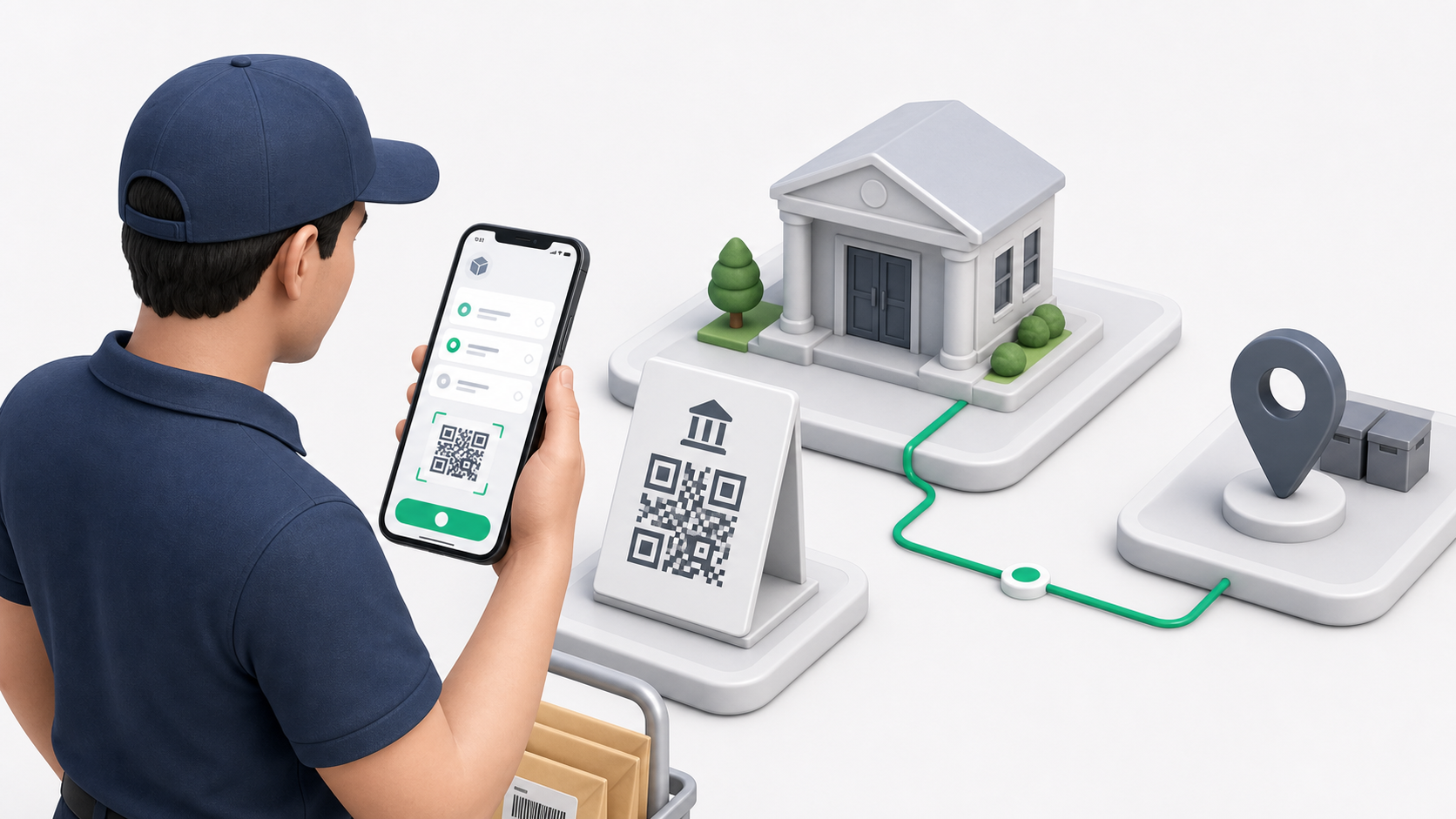
Drivers start a transfer manifest from the OnDi Driver App when they arrive at an institution branch for G2G pickup.
Open Transfer Manifests
In the driver app:
- Sign in with the driver account.
- Open the operations area.
- Tap Transfer Manifests.
- Review any existing manifests assigned to you.
- Tap the create action to start a new manifest.
If you already started a draft for the same pickup, open the draft instead of creating another manifest.
Start With QR Or Manual Selection
The driver can start setup in two ways:
- Use Scan QR when the branch has a posted branch QR code.
- Use manual selection when there is no QR code or scanning is not possible.
- If using manual selection, choose the Institution first.
- Choose the Branch.
- Confirm the branch matches the physical pickup location.
The QR option is usually faster and helps avoid selecting the wrong branch.
Confirm The Processing Point
The processing point tells the driver where the manifest should be handed to processing staff.
What the driver sees depends on tenant settings:
- If driver selection is allowed, the driver can choose the processing point.
- If driver selection is not allowed, the branch default processing point is shown and used.
If no processing point is available, the app blocks continuation. The driver should contact dispatch or a tenant admin instead of creating an incomplete pickup.
Create The Draft
- Check the institution.
- Check the branch.
- Check the processing point.
- Tap the continue/create action.
A draft manifest means:
- The driver can scan barcodes.
- Accepted barcode items appear in the scan list.
- Mistakes can still be removed.
- The pickup is not submitted yet.
Before Scanning
Before scanning the first item, confirm:
- The branch on screen matches the pickup location.
- The processing point is correct.
- The physical items have OnDi item barcode labels for this branch.
- The driver is scanning the current pickup batch, not old or void labels.
If any of these are wrong, stop before scanning. Starting with the wrong branch is the most common cause of barcode rejection later.