Barcode Batches and Printing
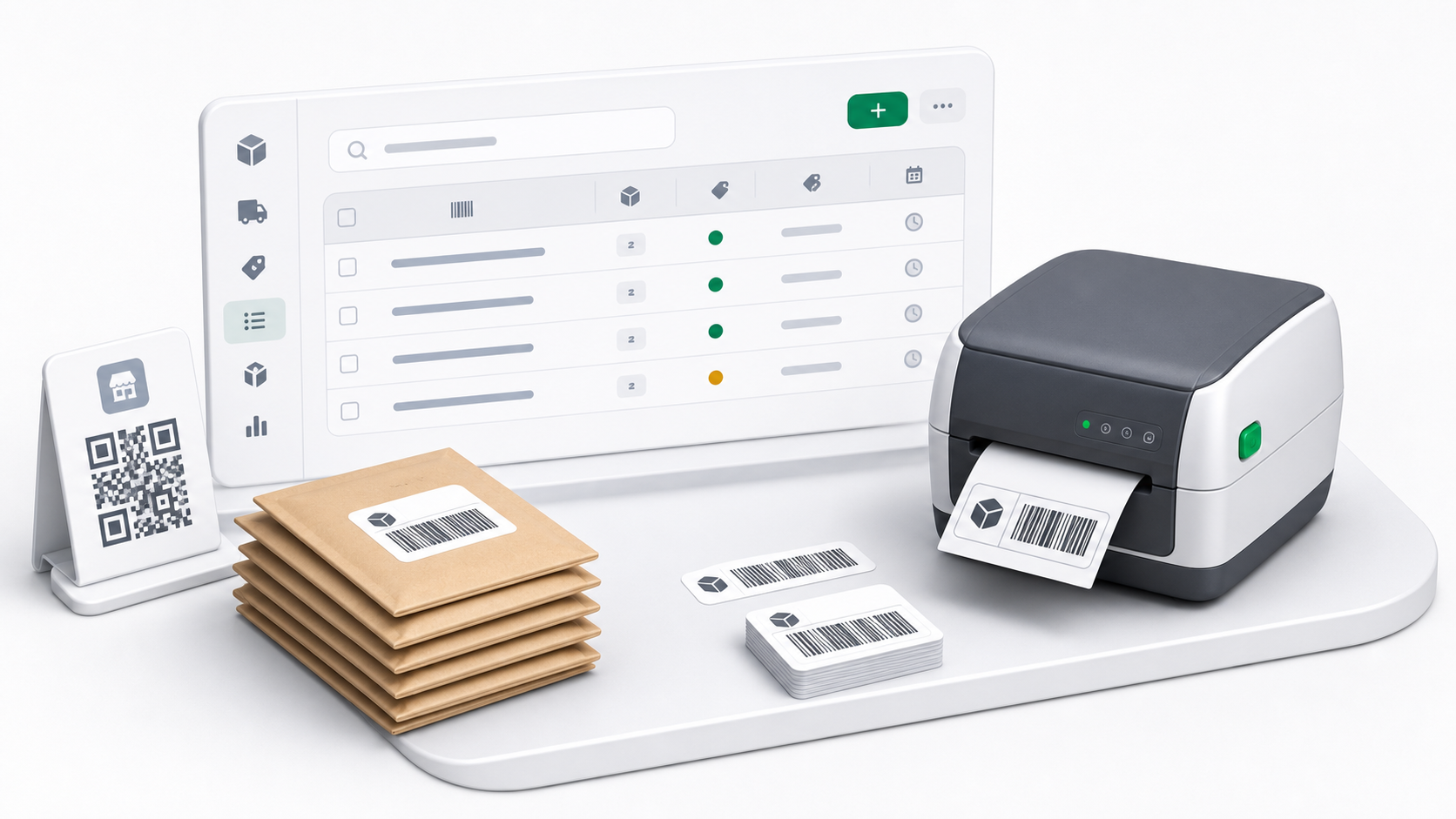
Barcodes identify the physical items collected from an institution branch. Print labels before pickup, place one label on each item, and keep unused labels controlled so they are not scanned by mistake.
Step 1: Open The Branch
- Open Customers.
- Open the institution customer.
- Open Branches.
- Find the branch that needs item labels.
- Open the branch actions menu.
- Choose Barcode Batches.
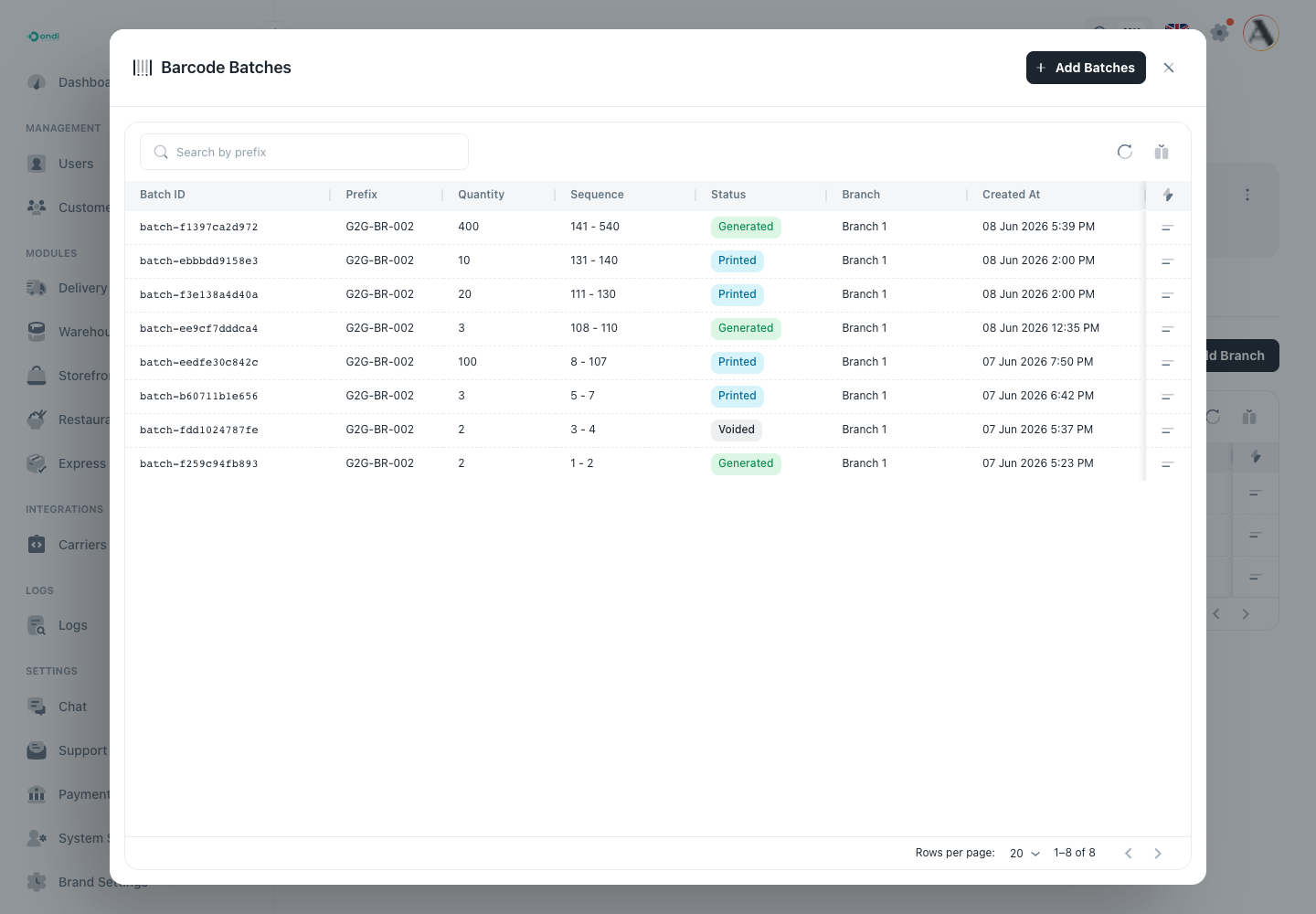
The batch list shows the generated ranges for the selected branch. Use the prefix and sequence range to identify which physical labels belong together.
Step 2: Generate A Barcode Batch
- Click Add Batches.
- Enter Quantity.
- Enter a Prefix if your operation uses one.
- Click Generate.
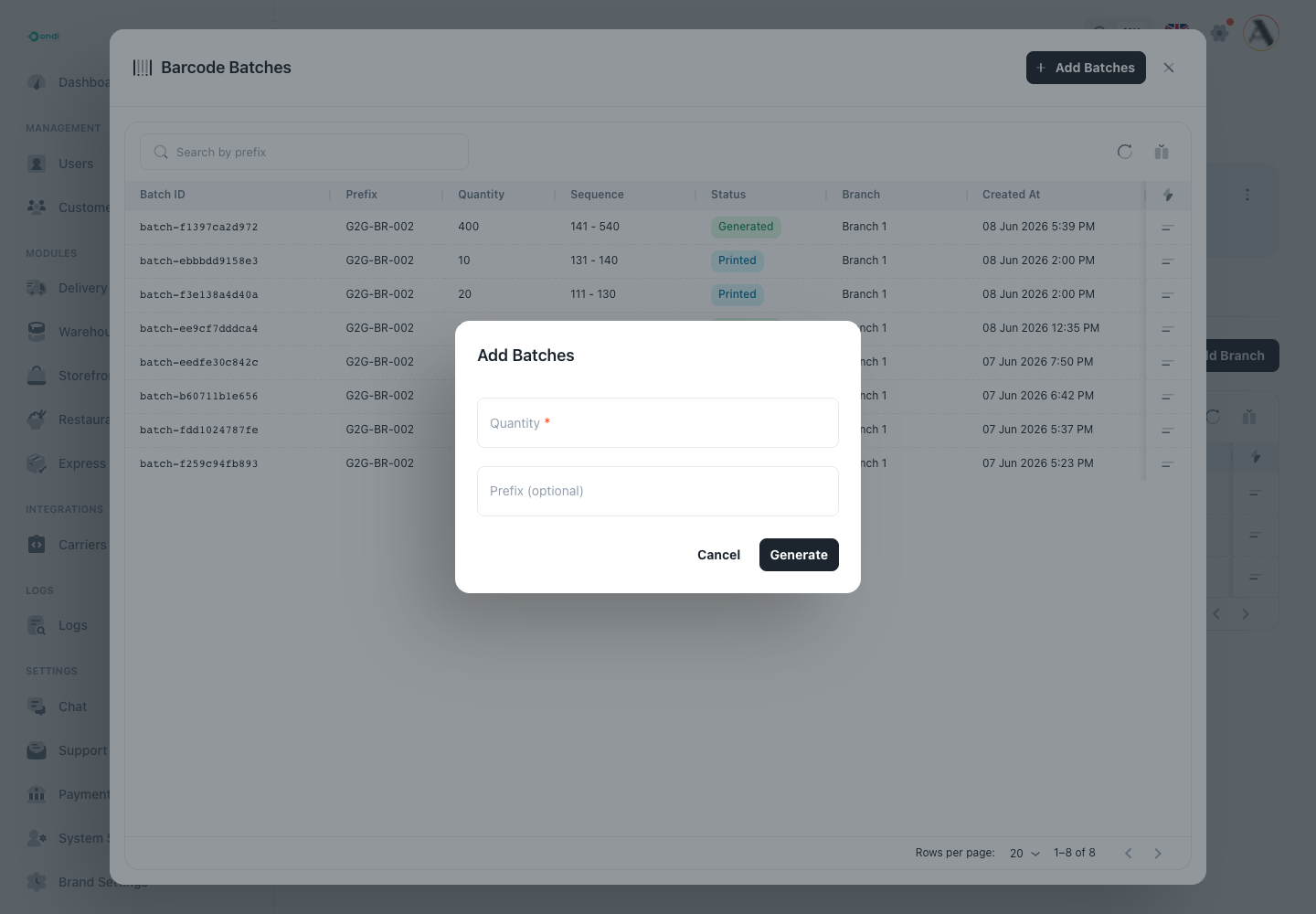
Use a prefix that helps staff recognize the branch or label range. The full barcode value is still the item identity that must be scanned.
Step 3: Open Batch Actions
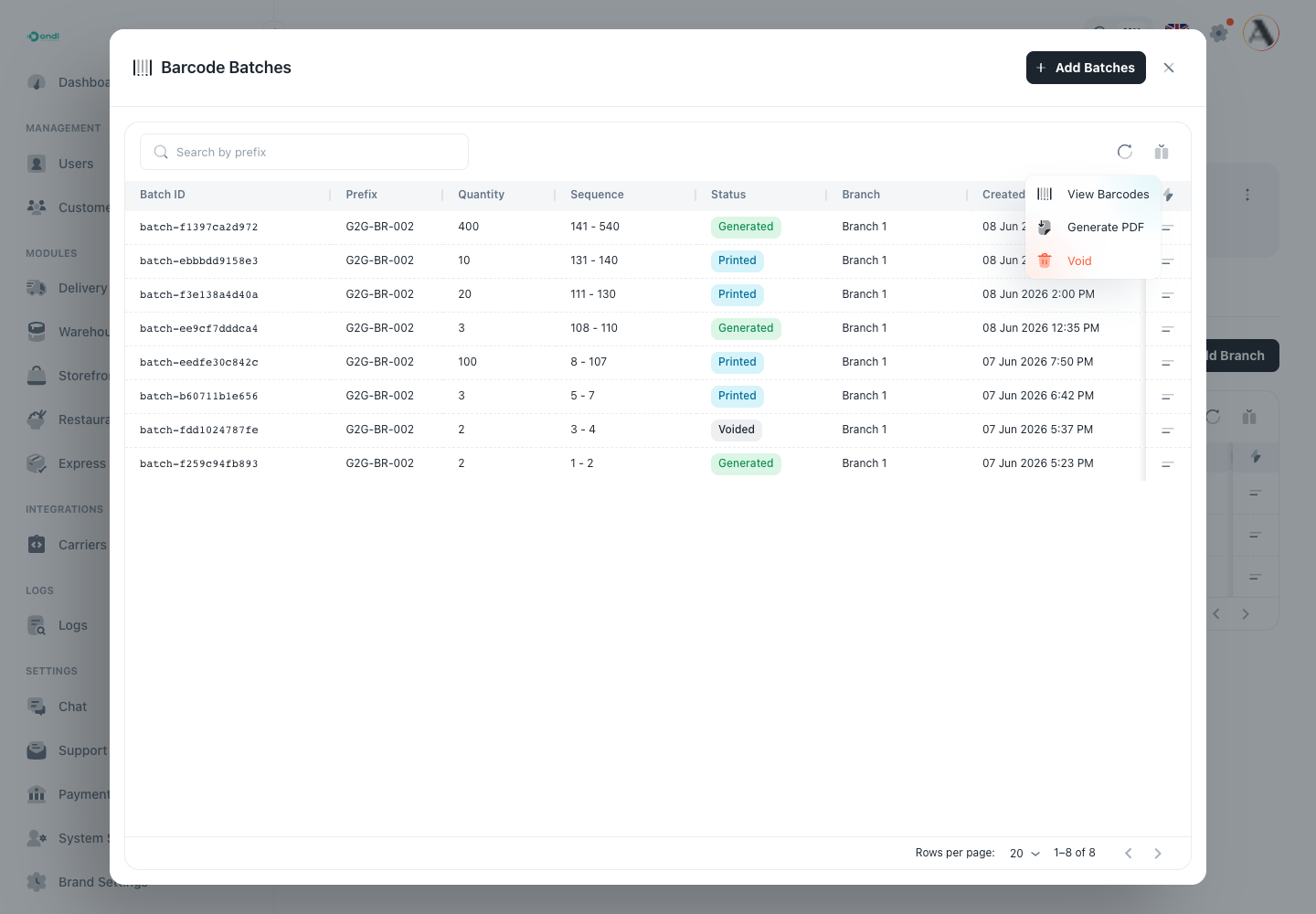
Use the batch row actions to view the individual barcodes, generate the print file, download an existing PDF, or void a batch that should not be used.
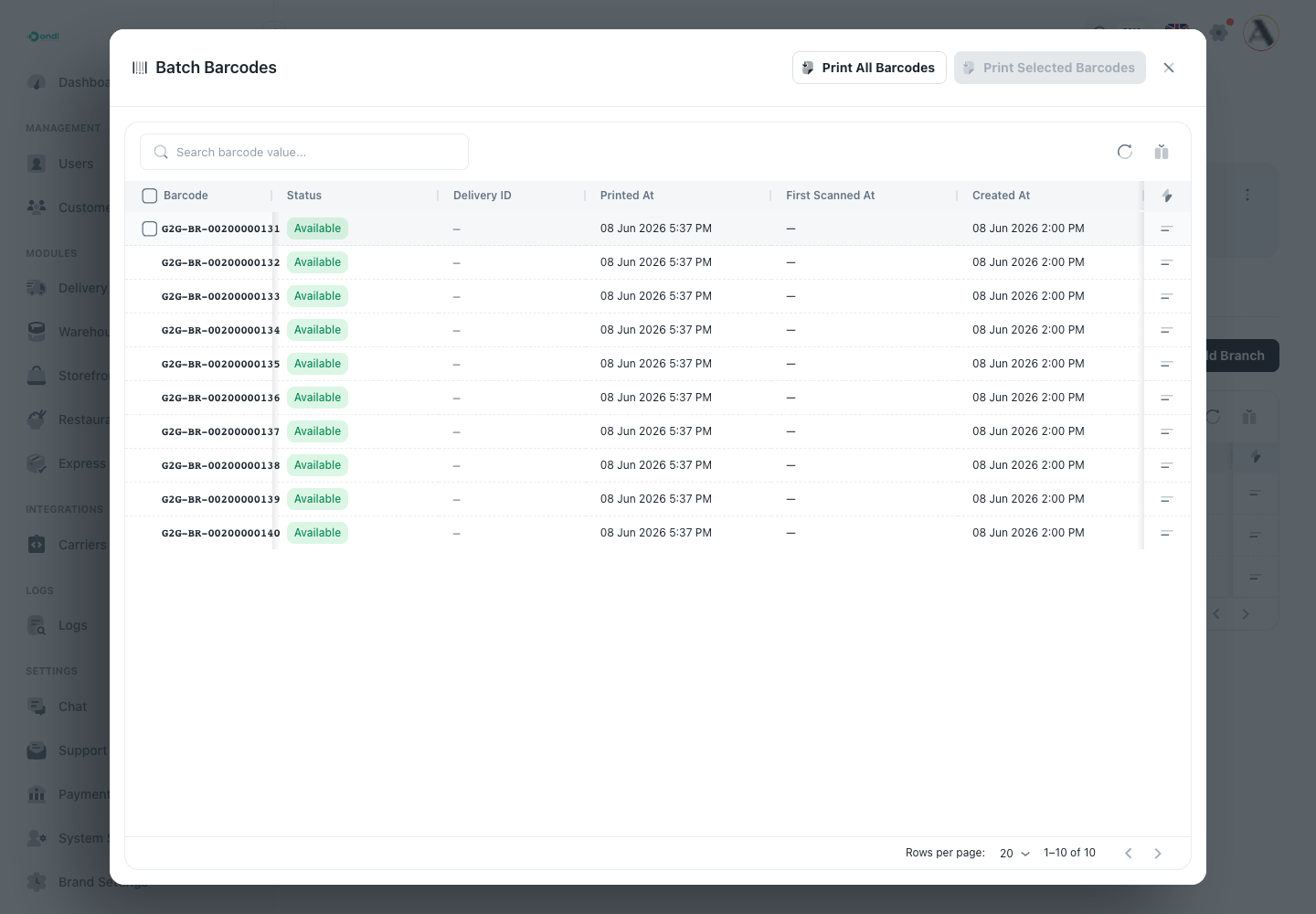
Step 4: View The Individual Barcodes
- Open the batch actions menu.
- Click View Barcodes.
- Review the generated barcode values.
- Use status to confirm whether a barcode is still available, already in a manifest, tied to an order, or voided.
Step 5: Print Labels
From the barcode list, use Print All Barcodes when the whole batch should be printed. Select specific rows and use Print Selected Barcodes when only part of the batch should be printed again.
Give printed labels to the correct institution branch. Do not mix labels between branches.
Step 6: Void Labels Only When Needed
Void only when the barcode should never be used.
Common reasons include:
- Labels were printed incorrectly.
- Labels were lost before being assigned to items.
- A batch was created for the wrong branch.
- An unused barcode needs to be retired.
Used barcodes are protected. A barcode already in a manifest, received, tied to an order, or already voided should not be treated like a fresh label.
Operating Rules
- Barcodes belong to one institution branch.
- A barcode should be used for one physical item only.
- Drivers cannot scan a barcode from the wrong branch into the manifest.
- A barcode already in another active manifest cannot be reused.
- Voided barcodes cannot be scanned for pickup.