Bulk Manifest Item Scan
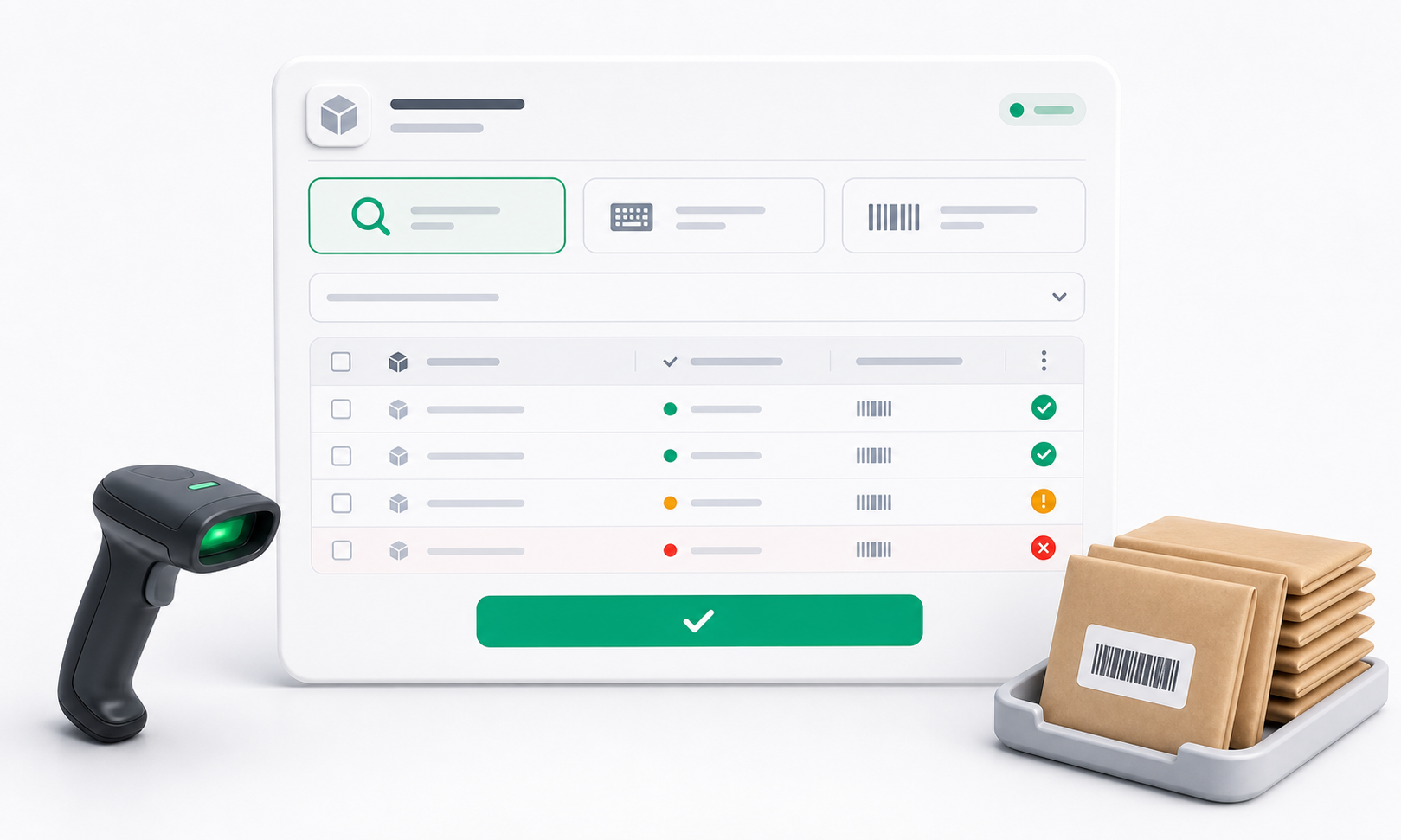
Bulk Manifest Item Scan is the fastest way to process many received manifest items that share the same destination and delivery service.
It can work across items from one manifest or from multiple manifests.
Step 1: Open The Workflow
- Open the dispatcher workspace.
- Open Transfer Manifests and click Bulk Scan, or open it from bulk operations.
- Start with an empty list before adding item barcodes.
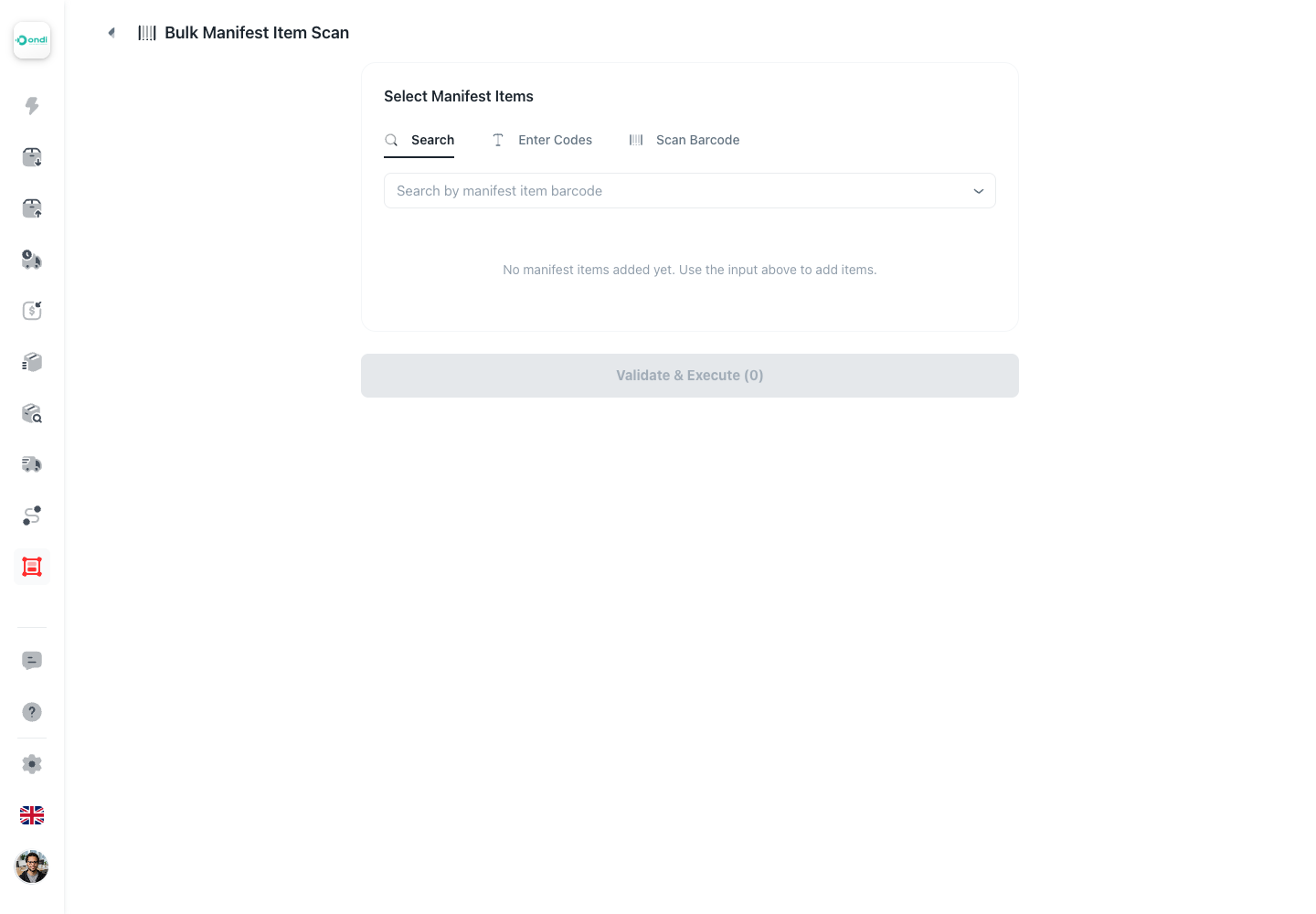
Step 2: Choose Search OR Manual OR Scan
All three tabs build the same work list. Choose the input method that matches the workbench.
Search
Use Search when staff know part of the barcode and want to choose from matching manifest items.
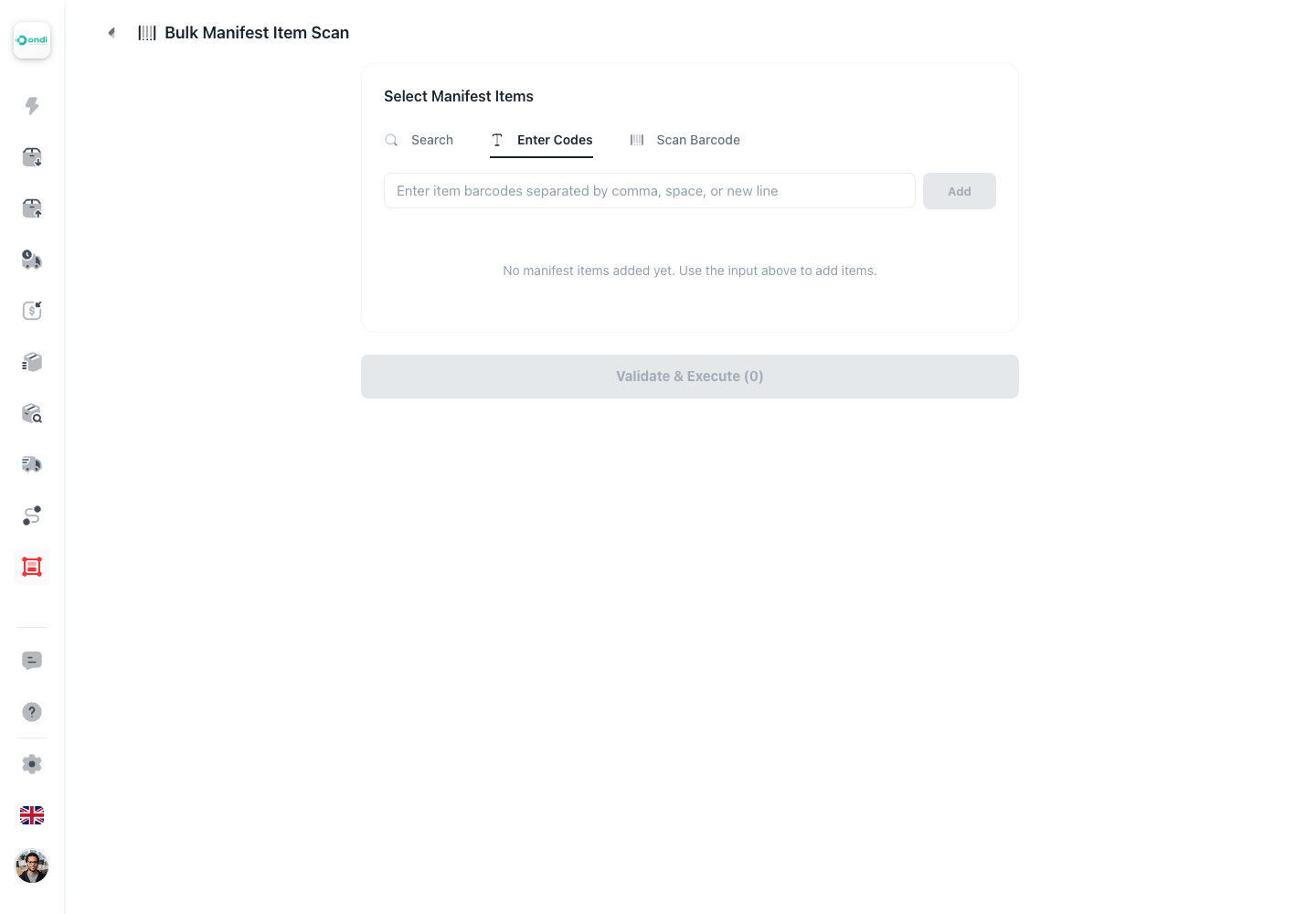
Enter Codes
Use Enter Codes when staff have a pasted list or need to type multiple barcodes.
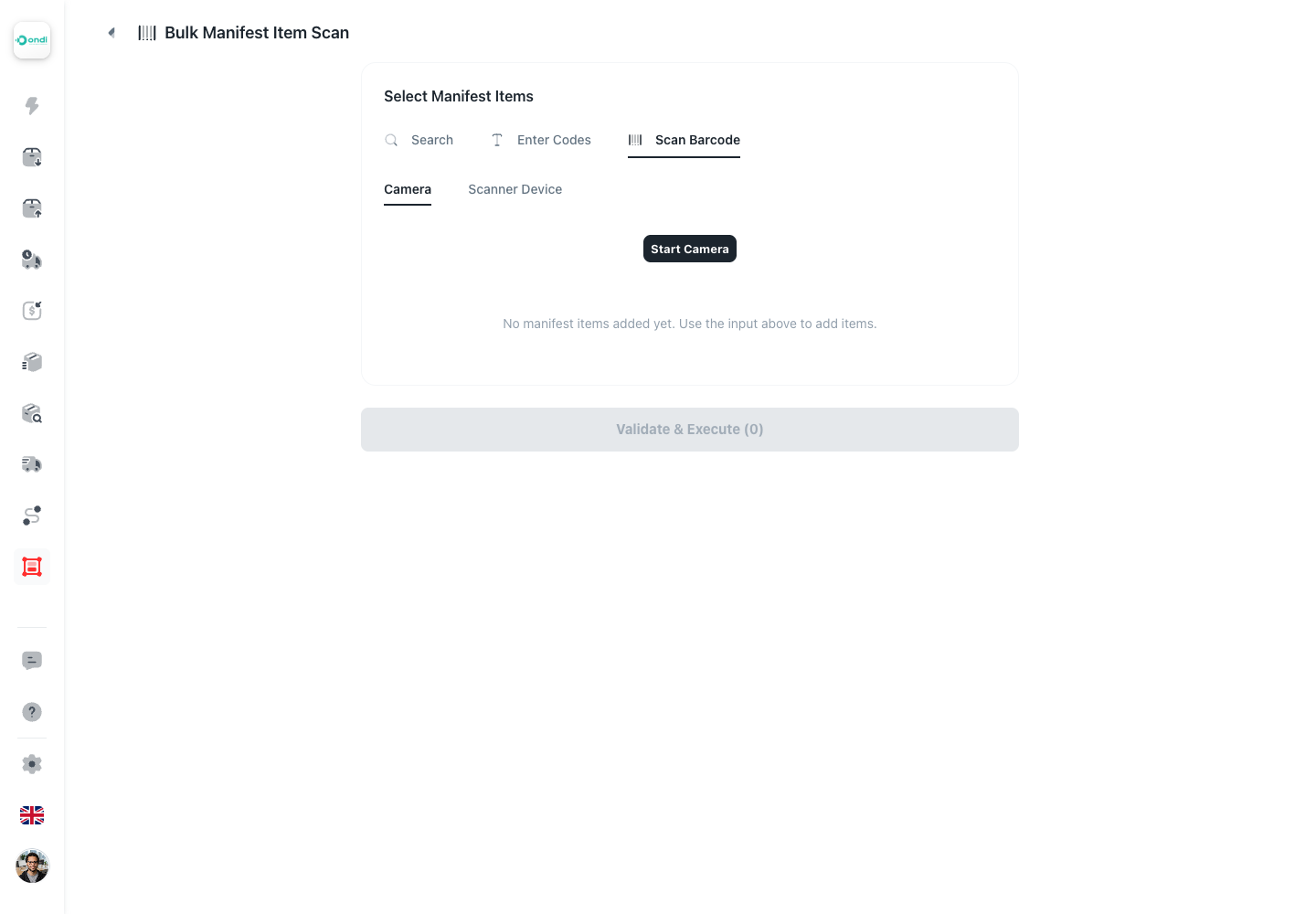
Scan Barcode
Use Scan Barcode when staff are scanning a physical tray or stack with a scanner.
Step 3: Review The List
Before validation, review the selected barcode list.
You can remove mistakes or clear the list before continuing. Duplicates are handled so the same barcode should not be processed twice in one run.
Step 4: Set Destination And Validate
After the item list is ready, click Validate & Execute. The modal asks for the destination and service before validation.
Choose the destination mode, destination, and delivery service. Address mode is for a normal destination address. Branch mode is for another institution branch.
The default delivery service can be preloaded from tenant settings, but staff should still confirm it is correct.
Then click Validate & Continue.
Validation checks whether each item can receive the selected bulk action.
The result separates:
- Valid items.
- Failed items.
- Failure reasons.
Remove failed items before execution unless you intentionally want a partial result.
Step 5: Execute
Click Proceed to create delivery orders for valid items.
The result shows:
- Successful items.
- Failed items.
- Created order links when available.
Use the result list to confirm whether the operation fully succeeded or whether some items need manual review.
When To Use Bulk Instead Of Single Assignment
Use bulk scan when:
- Many manifest items have the same destination.
- Items were collected across several manifests but should become orders together.
- Processing staff are scanning a physical tray, stack, or batch at a workstation.
Use single assignment when:
- The item needs individual review.
- The destination is unique.
- The barcode has an exception or unclear status.