Manifest List and Detail
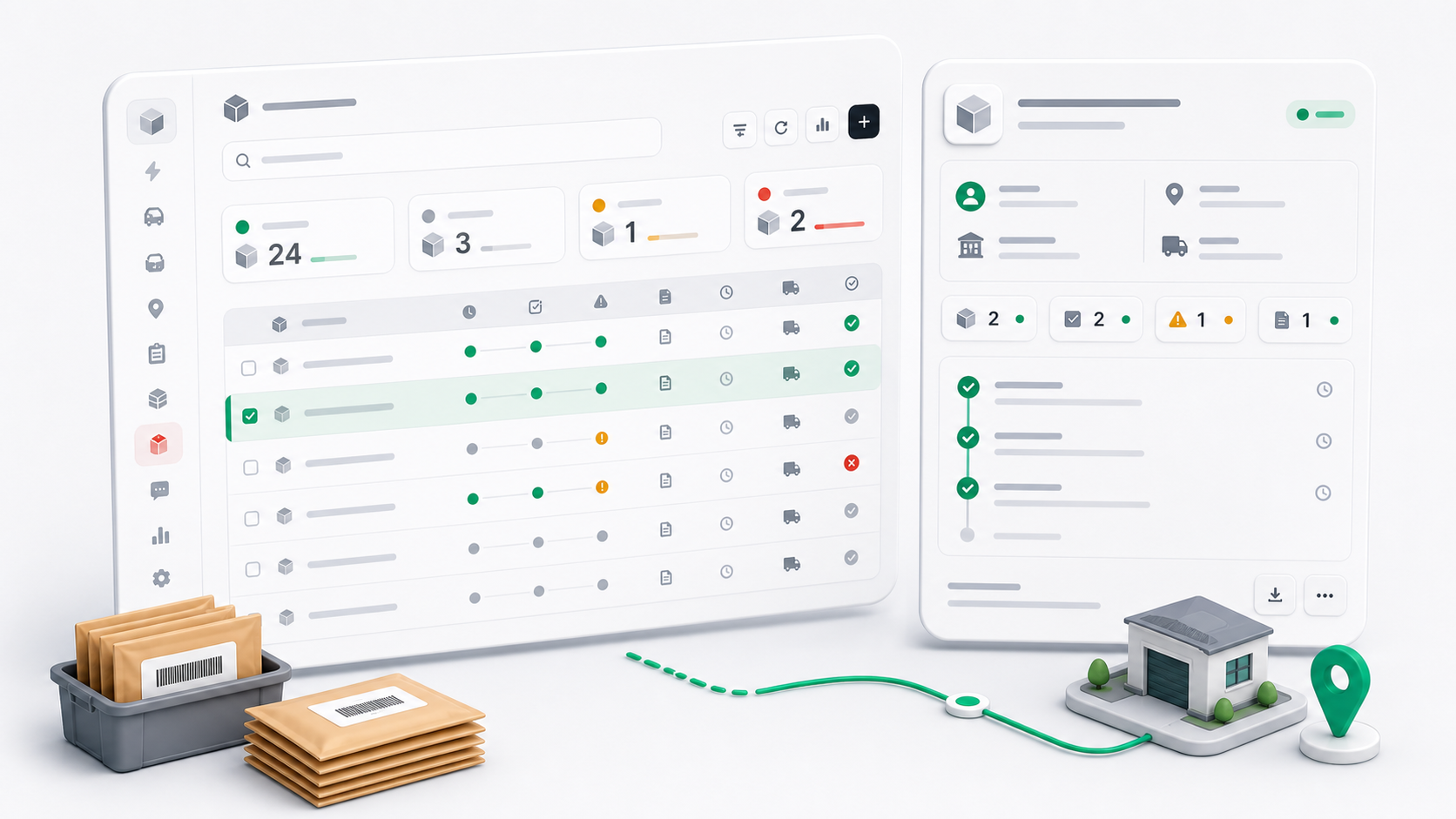
Dispatchers and processing staff use the Transfer Manifests area to receive, review, process, and audit G2G manifests.
Step 1: Open Transfer Manifests
- Sign in to the dispatcher workspace.
- Open Transfer Manifests from the sidebar.
- Use the search box when you already know the manifest number.
- Use the Bulk Scan shortcut only when you want to process manifest items in bulk.
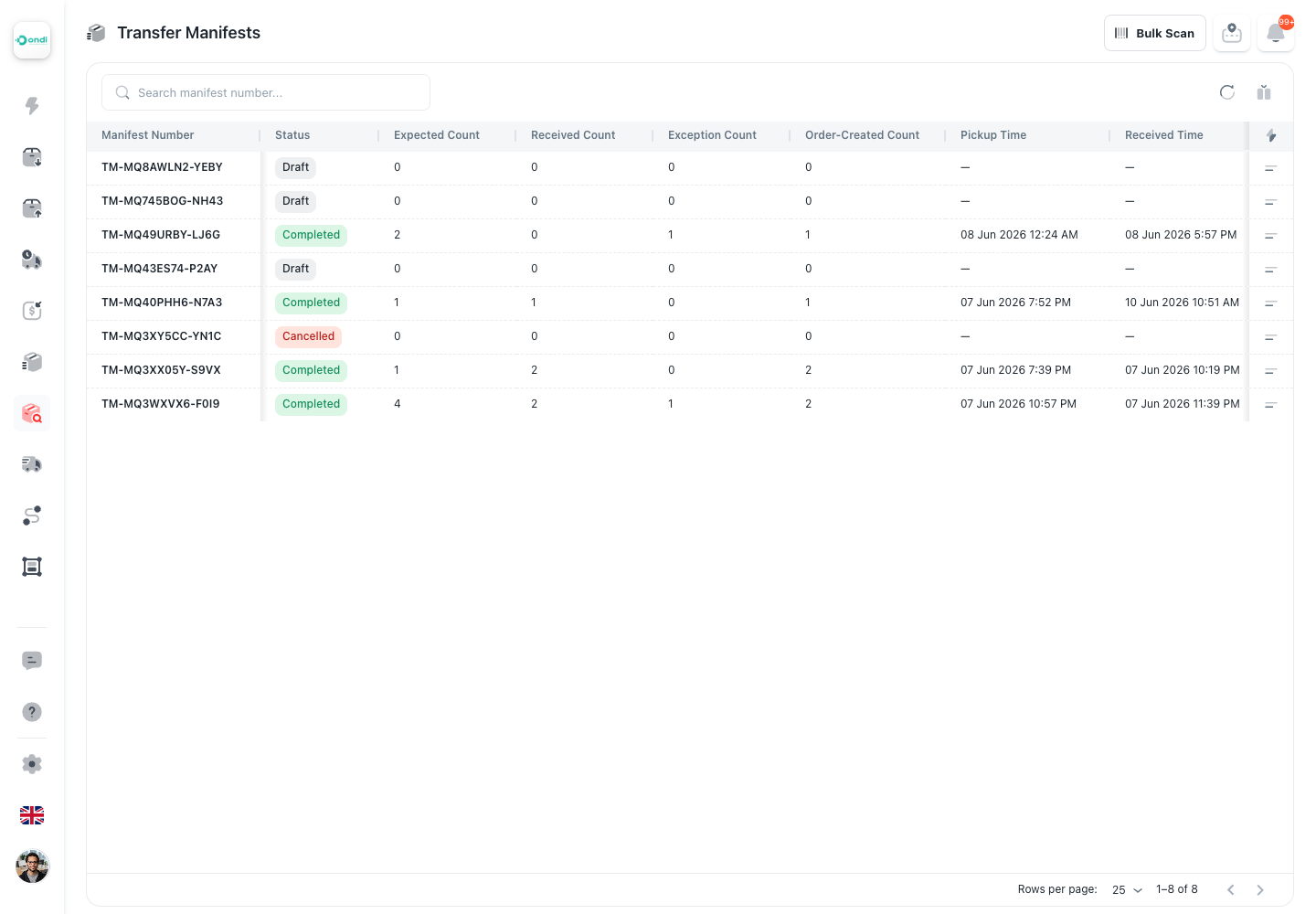
The list is a queue. Read it left to right: manifest number, current status, item counts, and the major pickup/receiving timestamps. You do not need to memorize every column; use the status and counts to decide what to open next.
Step 2: Pick The Right Manifest
Use the status first:
- Draft means the driver has not submitted pickup yet.
- Awaiting receipt means the driver arrived and processing staff can receive it.
- Receiving means staff started receiving and should finish the physical check.
- Received means items are ready for destination assignment.
- Received with exceptions means some items can continue, but exception items need review.
- Processing means destination assignment or order creation has started.
- Completed means the manifest is finished and should be reviewed only.
- Cancelled means the manifest stopped before normal completion.
Use the expected, received, exception, and created-order counts to understand whether the manifest is still waiting, partly handled, or finished.
Step 3: Open The Detail Page
Click a manifest row to open its detail page.
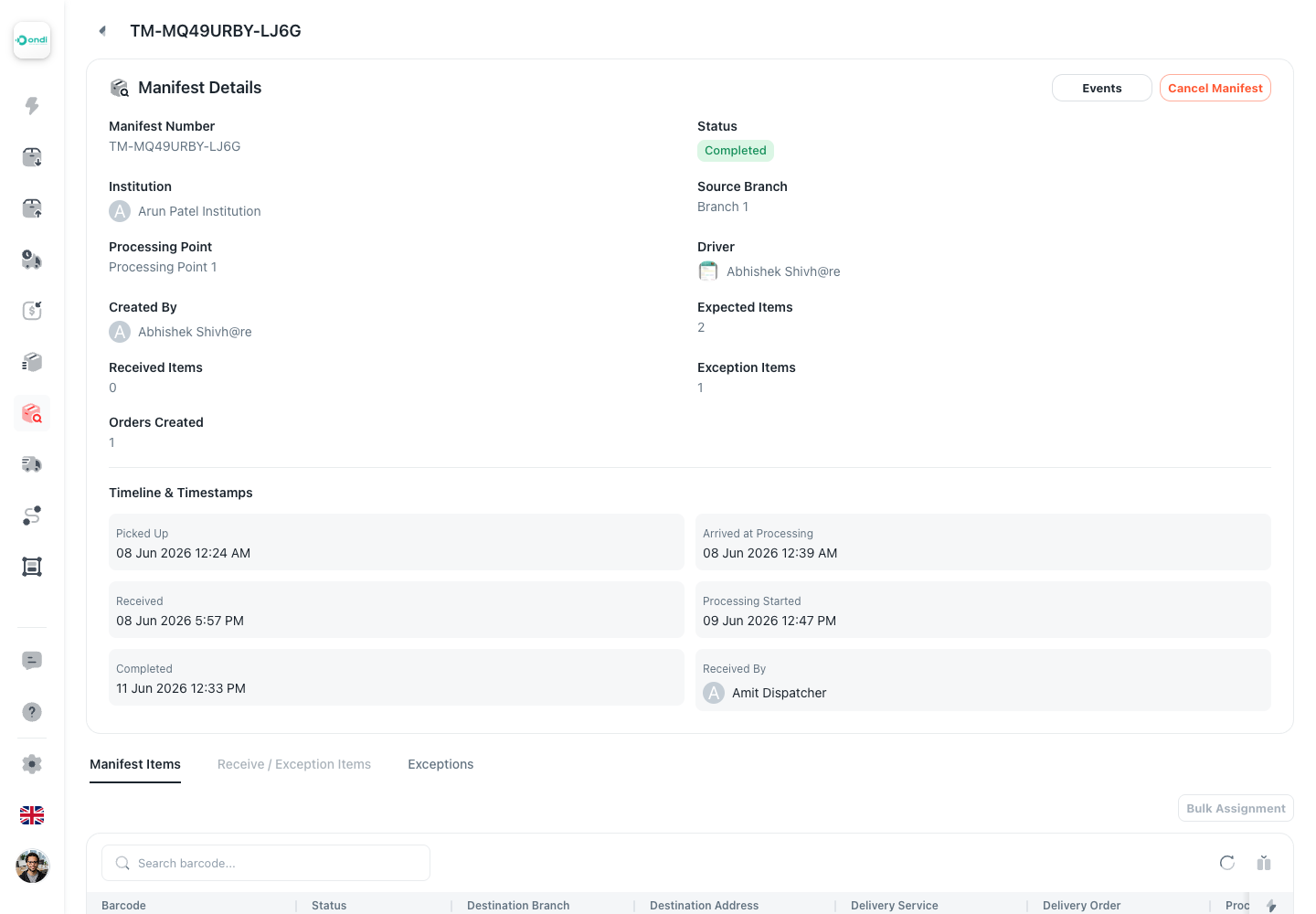
Start at the summary card. It tells you the institution, source branch, processing point, driver, counts, and timestamps. Then use the tabs below the summary to review items or exceptions.
Step 4: Choose The Next Action
Only the actions allowed for the current status are shown:
- Use Start Receiving when the manifest is awaiting receipt.
- Use Complete Receiving only after the physical receiving check is done.
- Use Bulk Scan or row assignment when received items are ready to become delivery orders.
- Use Events when you need to audit who moved the manifest and when.
- Use Cancel Manifest only when the operation should stop and the manifest is still eligible.
If a button is missing, the manifest is probably not in the required status, or another staff member already moved it forward.
Step 5: Use Events For Audit Questions
Open Events when you need answers such as who created the manifest, when pickup happened, when the driver arrived, who started receiving, and which items were received, marked exception, processed, or voided.