Exceptions
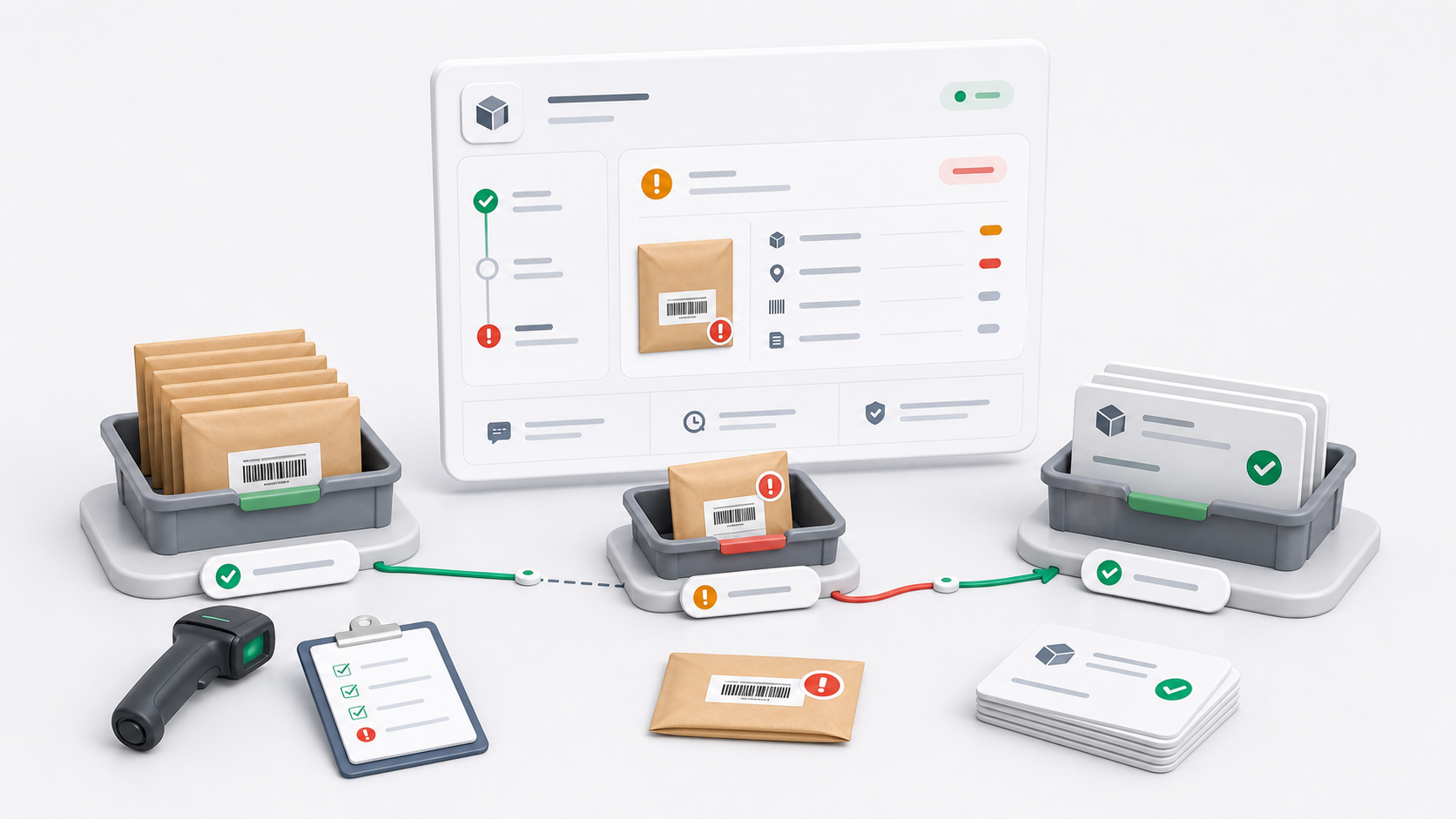
Exceptions are manifest items that should not continue to normal order creation until staff reviews the problem.
Step 1: Open The Exceptions Tab
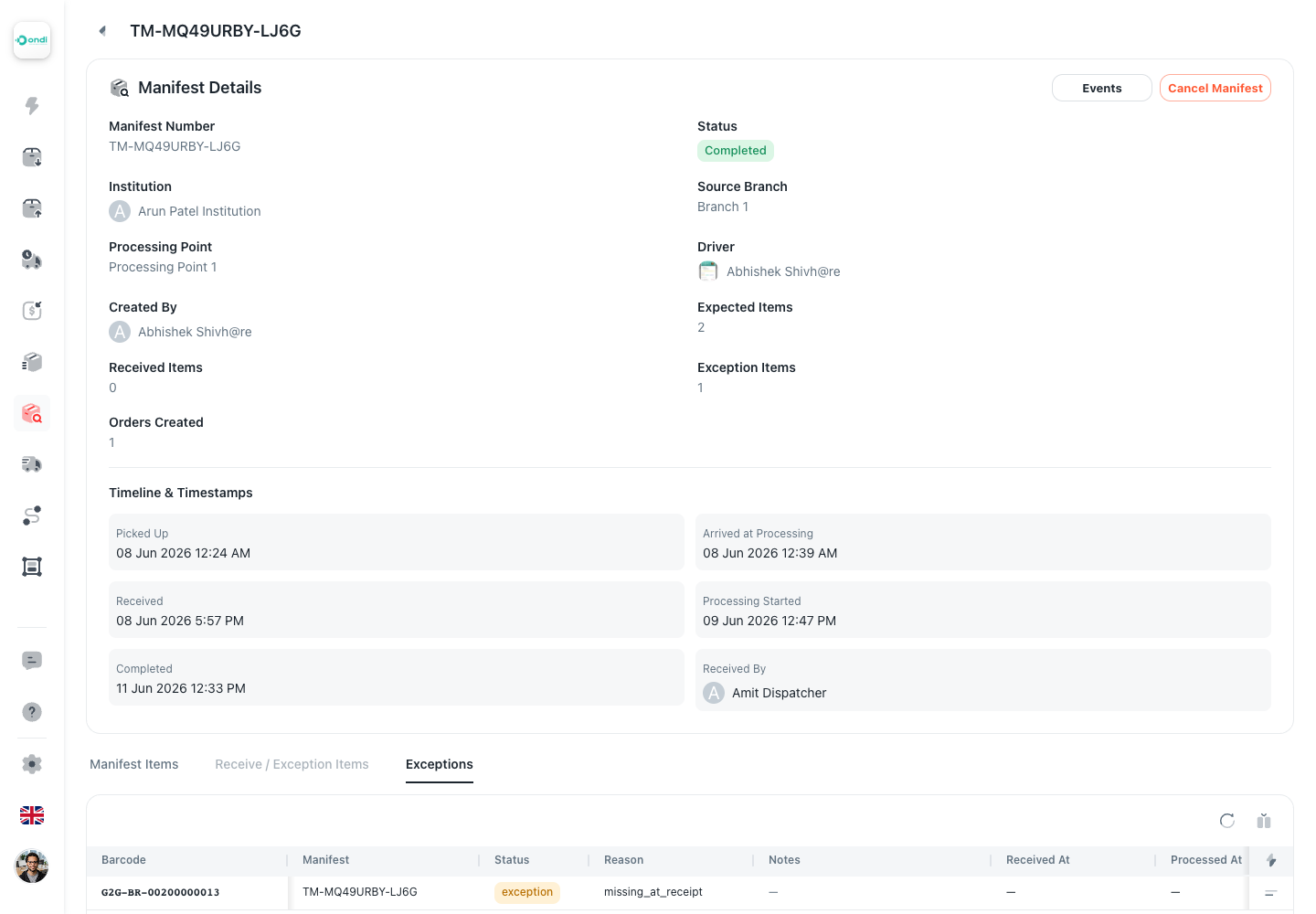
- Open Transfer Manifests.
- Open the manifest.
- Click Exceptions.
- Review the barcode, reason, notes, and received/processed timestamps.
Where Exceptions Come From
Exceptions can be created when:
- Staff adds an exception item during receiving.
- Receiving is completed while expected items are still missing.
- A barcode is damaged, unreadable, mismatched, or held for manual review.
- Staff later identifies an item that should not be processed normally.
Step 2: Read The Notes
Exception notes should answer the question another operator will ask later: what happened?
Good notes are short and concrete:
- Label torn, barcode entered manually.
- Physical item missing from bag.
- Wrong branch label found during receive.
- Hold for supervisor review.
Avoid vague notes such as "problem" or "check later."
Step 3: Decide The Resolution
Use Resolve Exception from the exception row action.
Choose one resolution:
| Resolution | Use it when |
|---|---|
| Reprocess | The item is now safe to process. It returns to received and can be assigned a destination. |
| Void | The item should not become a delivery order. |
Resolution notes are required so the audit trail explains the decision.
Step 4: Continue After Resolution
| Result | What happens next |
|---|---|
| Reprocess | The item can be assigned a destination from the Items tab or bulk workflow. |
| Void | The item is closed and should not be assigned or delivered. |
Practical Review Order
- Compare the exception barcode to the physical item.
- Check the source branch and manifest number.
- Read the reason and notes.
- Decide whether the item can be reprocessed or must be voided.
- Save resolution notes.
- If reprocessed, assign the destination and create the delivery order.