Receive a Manifest

Receiving confirms what arrived at the processing point. Start receiving only when the physical manifest items are ready for processing staff.
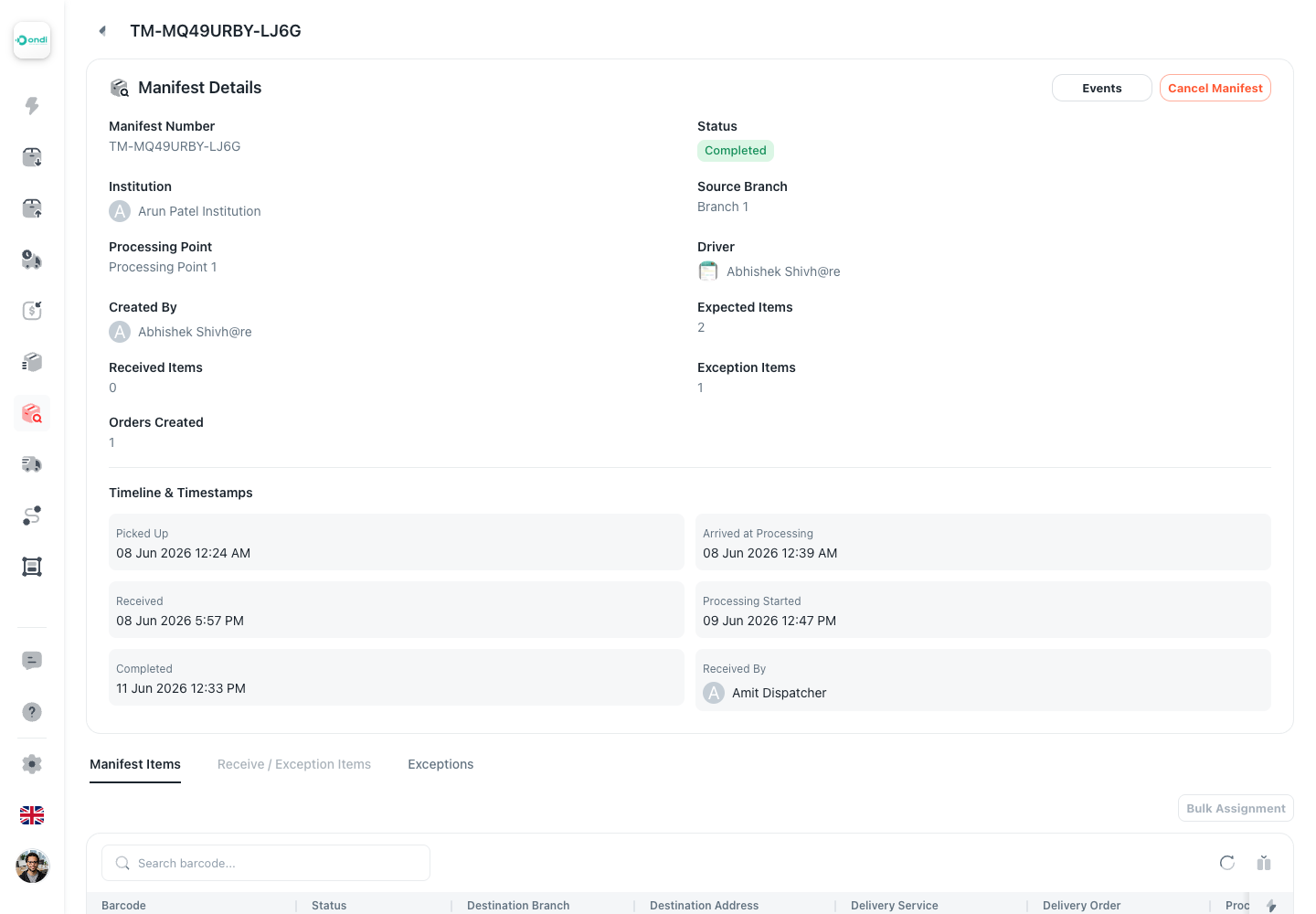
Step 1: Open The Arrived Manifest
- Open Transfer Manifests.
- Find the manifest with a status that is ready for receiving, usually Awaiting receipt.
- Open the manifest detail page.
- Confirm the institution, branch, processing point, and expected item count.
Step 2: Start Receiving
Click Start Receiving.
This moves the manifest to Receiving and opens the receive and exception inputs. Do not start receiving until the physical tray, bag, or package is actually at the processing point.
Step 3: Add Received Items
In the receive tab, use Received Items.
- Search for a barcode already in the manifest, or scan it.
- Add the barcode to the received list.
- Repeat until all physically received barcodes are recorded.
- Review the result before completing receiving.
If a barcode is rejected, stop and check whether it belongs to the same manifest, was already handled, is voided, or was entered incorrectly.
Step 4: Add Exception Items
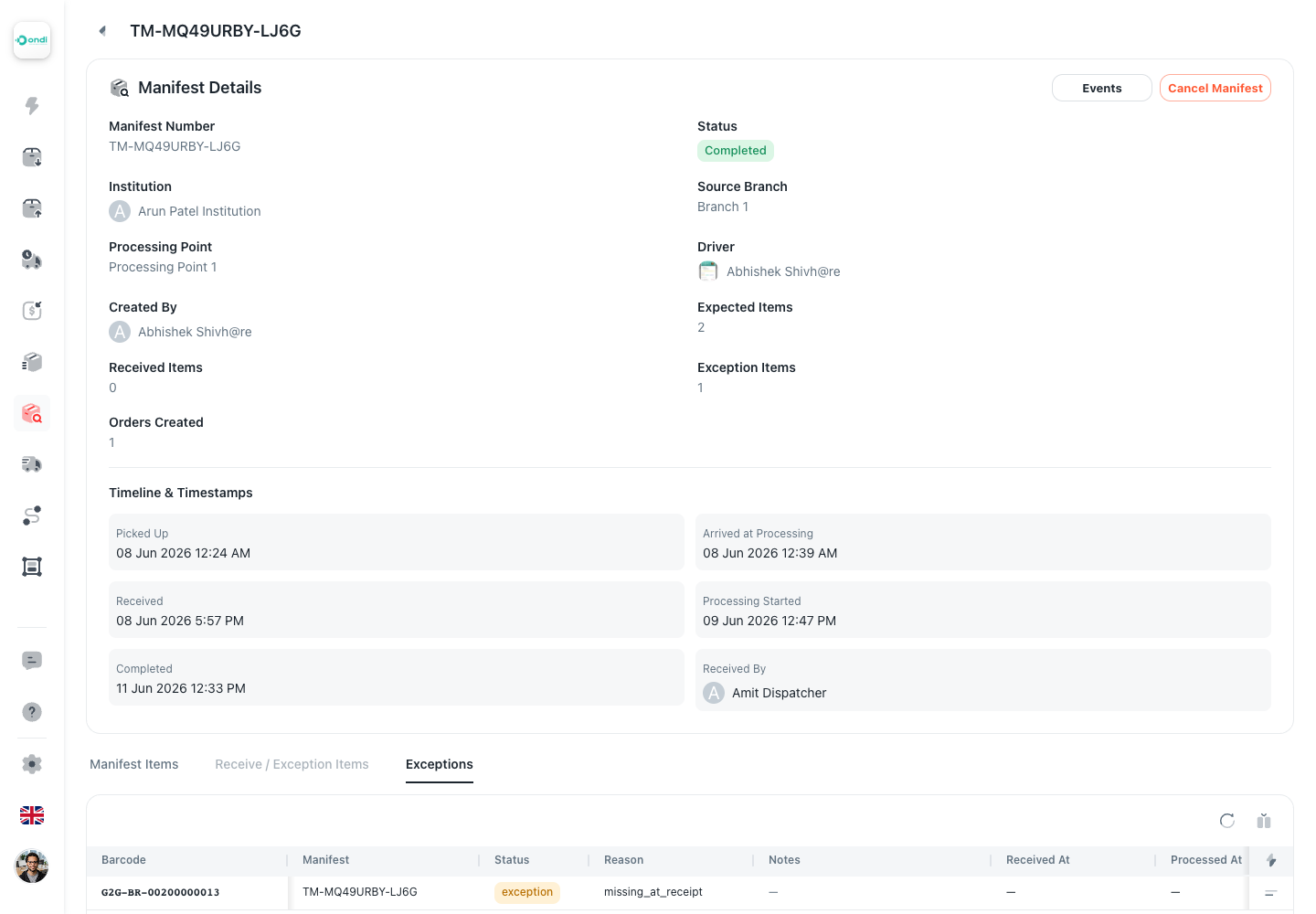
Use Exception Items when a barcode has a problem during receiving.
- Search or scan the barcode.
- Choose the exception reason.
- Add a short note when the reason is not obvious.
- Save the exception.
Common reasons include:
- Manual hold.
- Missing.
- Damaged.
- Barcode unreadable.
- Mismatch.
- Other.
Exception notes should be short and specific enough for another staff member to understand the issue.
Step 5: Complete Receiving
Use Complete Receiving after the physical check is done.
If the expected count is higher than the received plus exception count, the portal warns that completing receiving will mark the remaining shortfall as exceptions.
Only complete receiving when the physical check is finished.
Count-Only Receiving
If the tenant is configured for count-only receiving, completing receiving can automatically mark remaining open items as received according to the configured behavior.
Use count-only receiving only when the business process accepts count-based handoff instead of scanning every barcode at processing.
After Receiving
After receiving is complete:
- Received items can be assigned a destination.
- Exception items remain in exception review.
- Missing or unresolved shortfall is visible as exceptions.
- The manifest moves toward received, received with exceptions, processing, or completed depending on the item outcomes.
Open the detail page again after receiving to confirm the counts and item statuses before assigning destinations.